
This article will explain you how to configure with Microsoft Intune the Dell Sonicwall NetExtender VPN client.
Step 1
Use this small piece of PowerShell script and customize it with your own parameters like the Sonicwall VPN Server
#Prerequisites : the Dell Sonicwall NetExtender should already be installed on the computer before to run the script
cd « C:\Program Files (x86)\SonicWall\SSL-VPN\NetExtender »
$VPNServer = « vpn.server.com »
$VPNDomainName = « VPN »
$VPNPassword = « » #if you want to provision the password
## uncomment the next line if you want the VPN username equal to the computer name
#$account = $env:computername
## uncomment the next line if you want the VPN username equal to the UPN of the logged user
#$account = whoami /upn
.\NECLI.exe addprofile -s $VPNServer -u $account -p $VPNPassword -d $VPNDomainName
Step 2
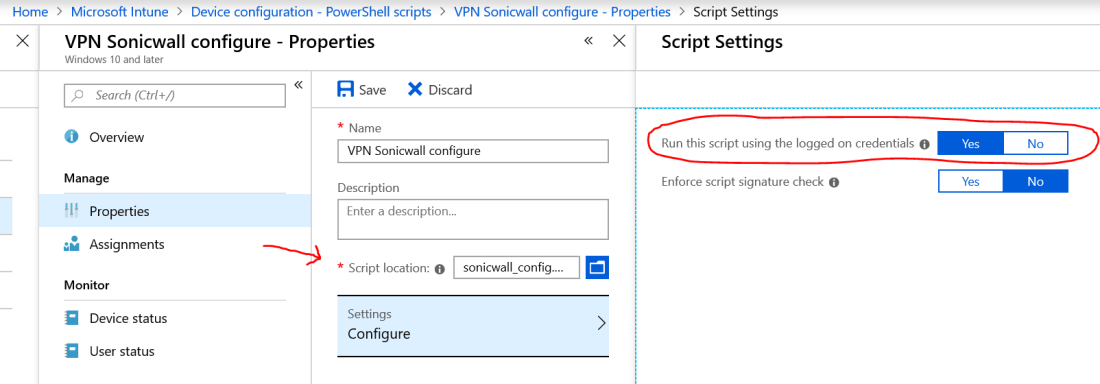
Define in Intune the script deployment and assign the configuration to the « user »
Go to Intune, Device Configuration and finally to PowerShell Scripts
Enter the name for this script, specify the script location and don’t forget to set to YES « Run this script using the logged on credentials »
Step 3
After a successfully Intune deployment, you can start using the NetExtender, you just need to fill the password and click Connect.
Enjoy !

 Welcome to get-Ready