Microsoft Teams – tablette de dessin Wacom

Dernièrement j’ai Ă©tĂ© confrontĂ© Ă  des questions tel que « comment ĂŞtre plus efficace lors de prĂ©sentation ? »

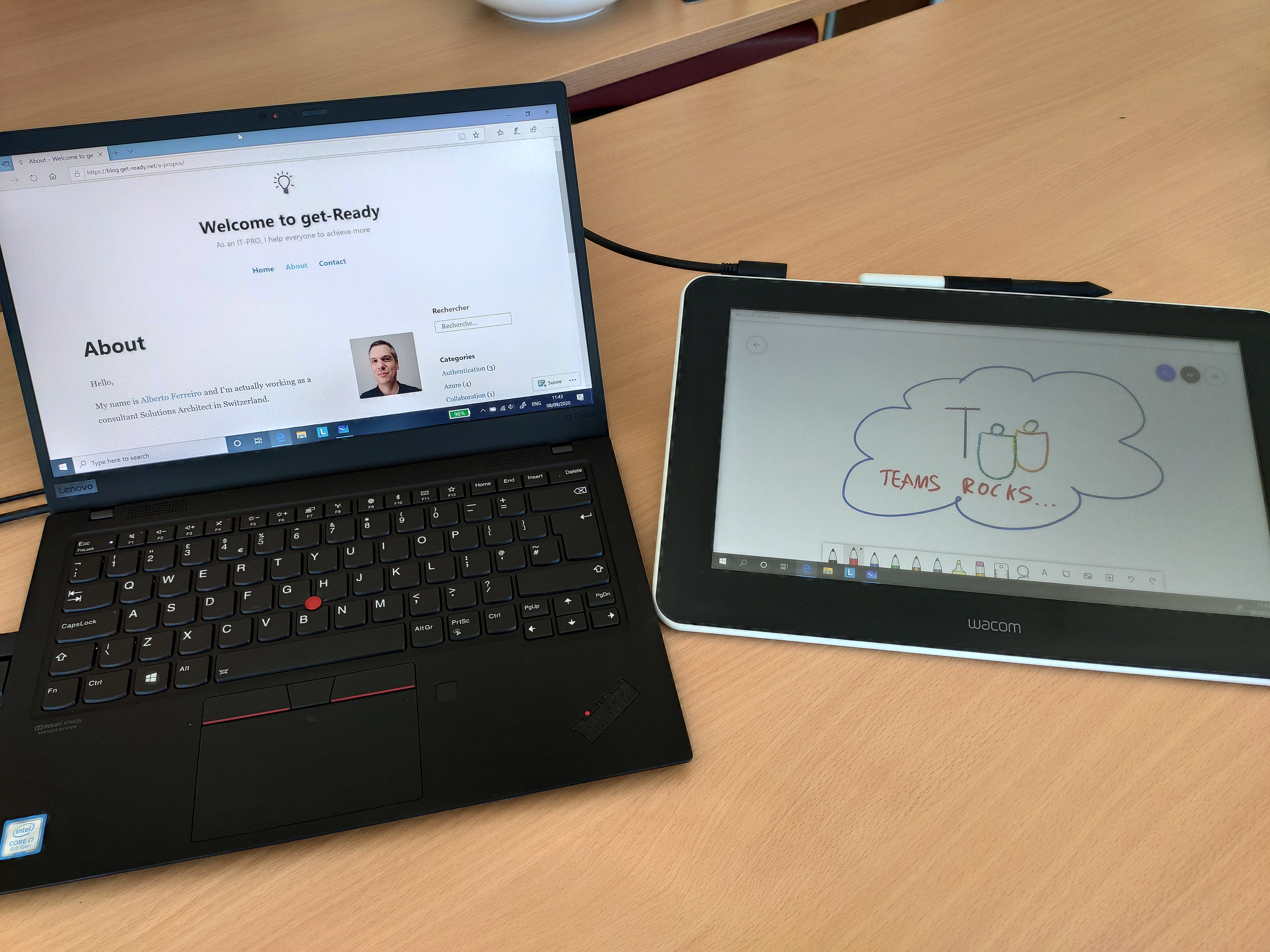
Evidement, il n’y a pas de formule magique, mais j’ai dĂ©cidĂ© de tester la nouvelle tablette de dessin « Wacom One ». Cette tablette se comporte comme un Ă©cran tactile externe et offre la prĂ©cision de dessin nĂ©cessaire avec un stylet adaptĂ©.

Mon but Ă©tant d’utiliser cette tablette lors de mes formations et confĂ©rences avec Microsoft Teams, car mĂŞme si j’ai un Ă©cran tactile sur mon laptop, je n’ai pas trouvĂ© la bonne façon de pouvoir dessiner efficacement.

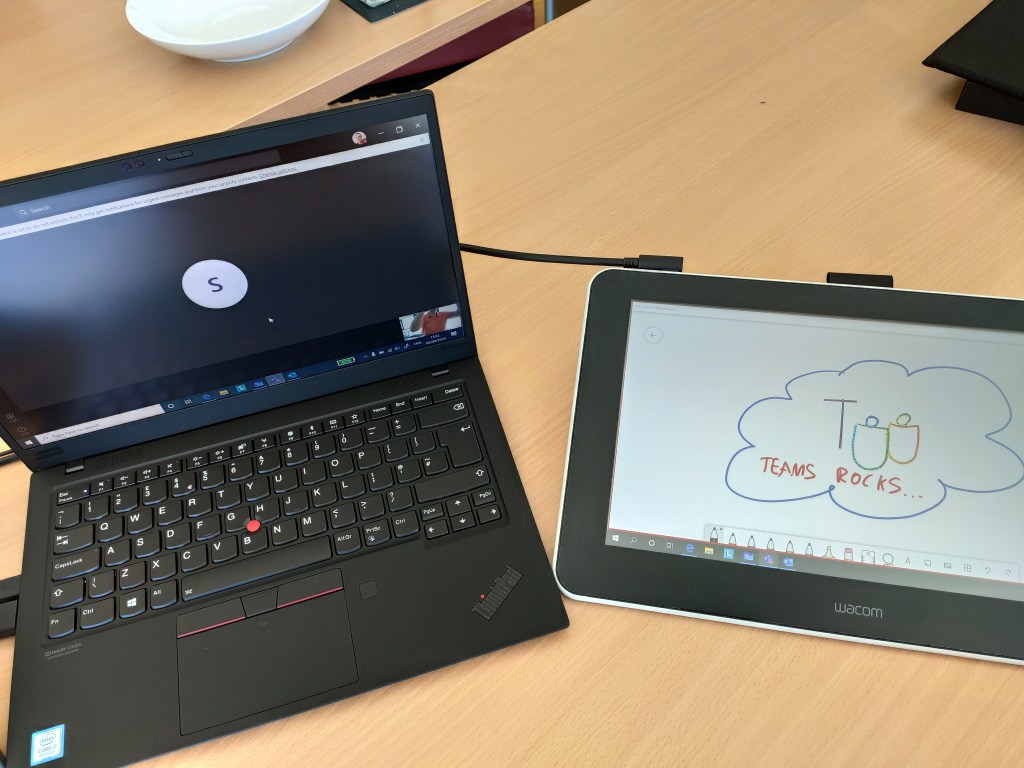
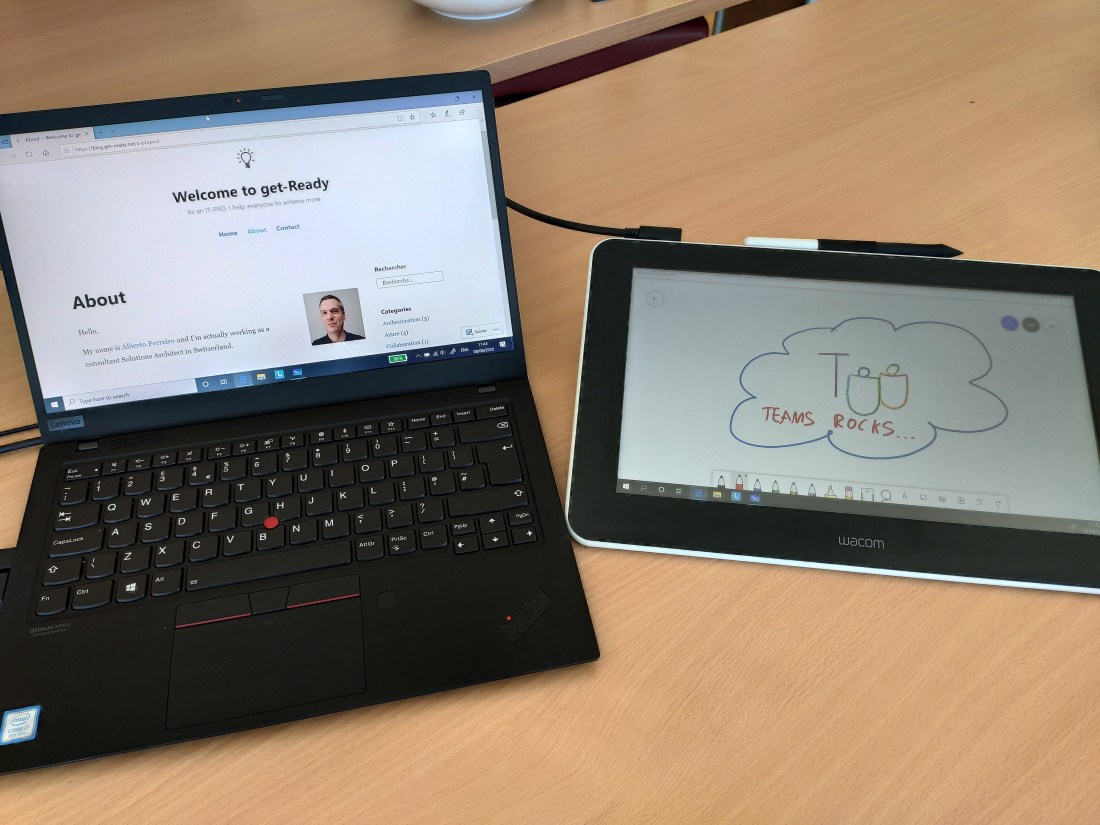
voici quelques photos de ma configuration
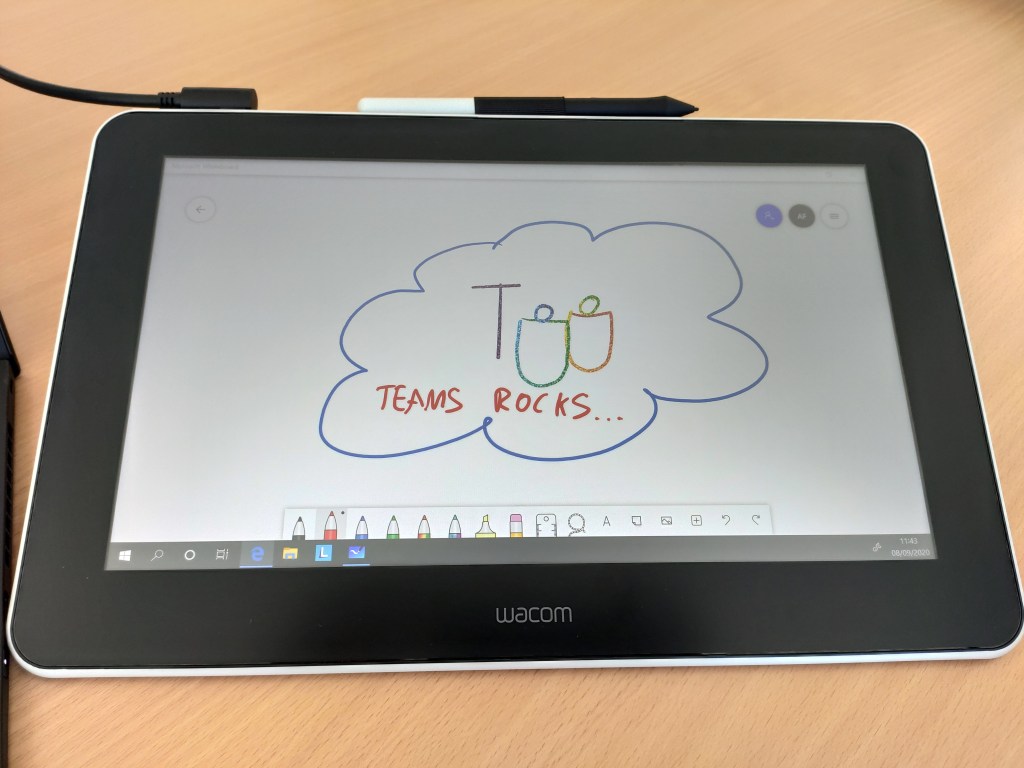
Ensuite pour le partage dans Microsoft Teams, rien de plus simple. Il vous suffit de partager l’Ă©cran de la tablette Wacom One, ou alors d’utiliser « Microsoft Whiteboard » pour illustrer vos propos.
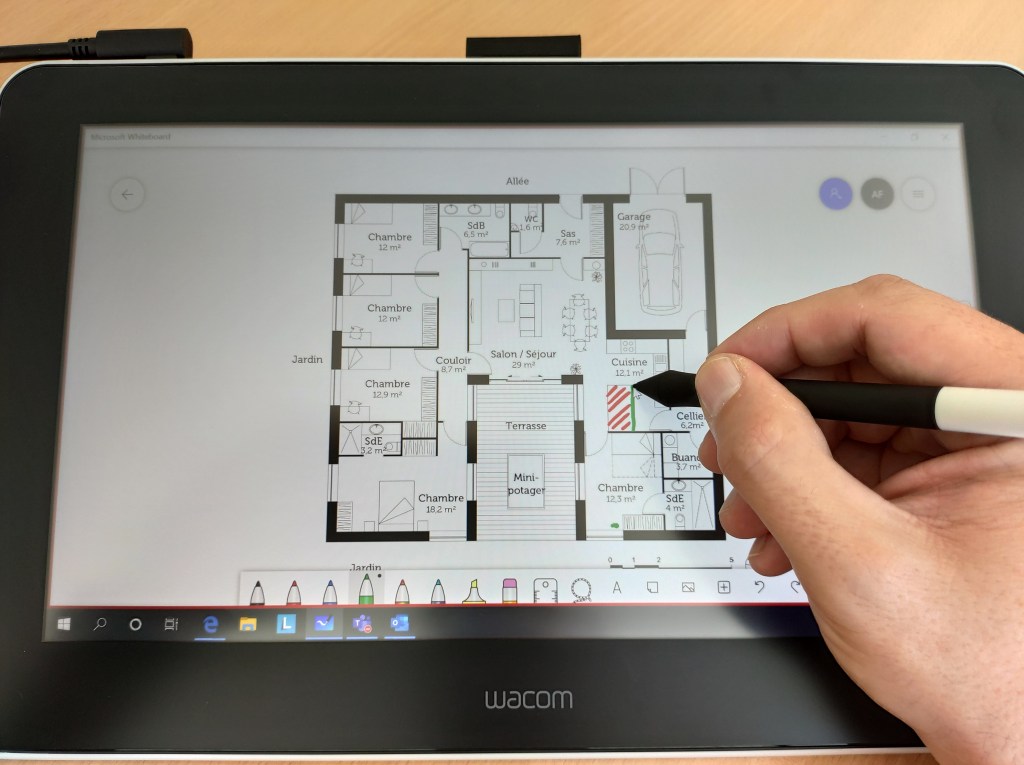
L’ensemble de vos correspondants Microsoft Teams visualisent parfaitement vos illustrations, ainsi que la prĂ©sentation Ă  l’Ă©cran.

La tablette Wacom permet de dessiner facilement avec « Microsoft Whiteboard » et « Microsoft PowerPoint » pour ne citer que ces deux. QuantitĂ© d’autres logiciels sont parfaitement compatible.
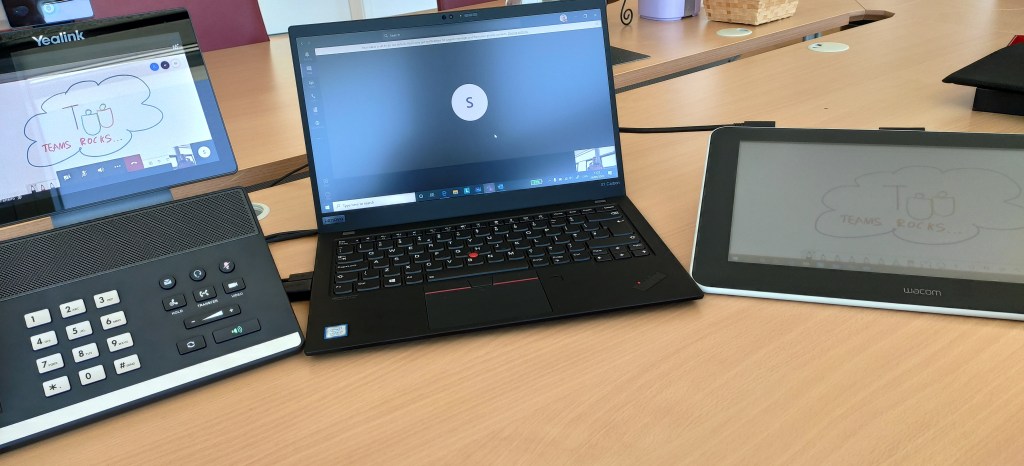
La tablette Wacom One dispose des connectiques suivantes:

  • USB pour la connexion au PC
  • USB pour l’alimentation Ă©lectrique
  • HDMI pour l’affichage de l’Ă©cran

En espérant que cet article puisse vous aider dans vos conférences de tous les jours.
Microsoft Teams – TĂ©lĂ©phone de confĂ©rence

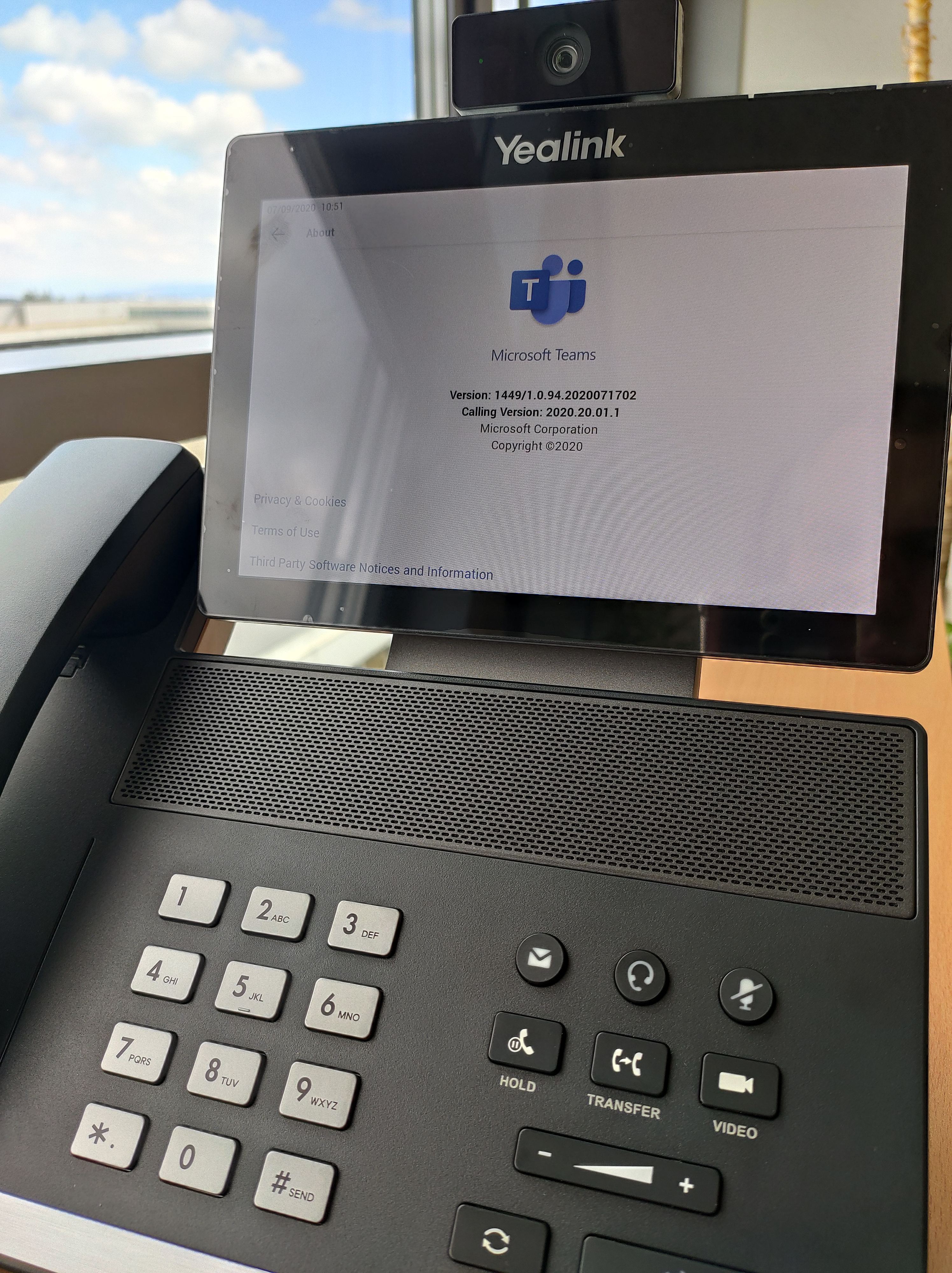
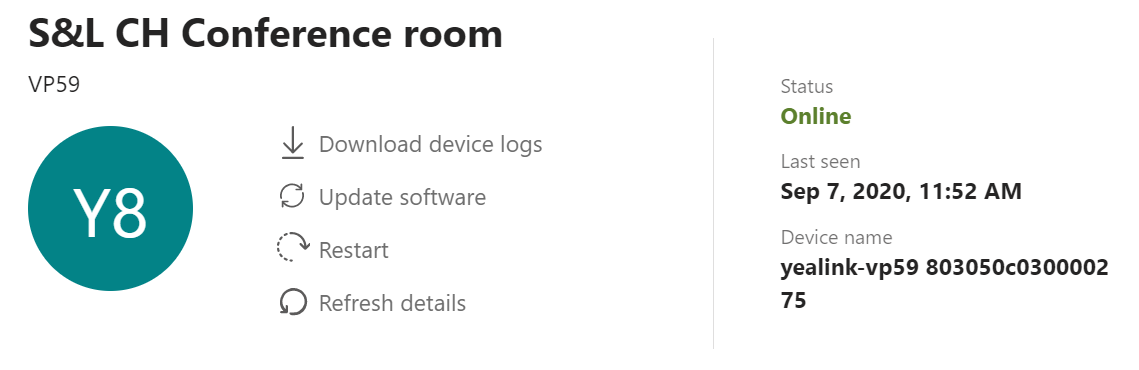
Vous trouverez dans cet article quelques indications sur comment utiliser un téléphone natif Microsoft Teams.

Ce type de tĂ©lĂ©phone vous permet d’avoir physiquement sur votre bureau ou dans une salle de confĂ©rence un pĂ©riphĂ©rique qui est liĂ© en permanence Ă  Teams.

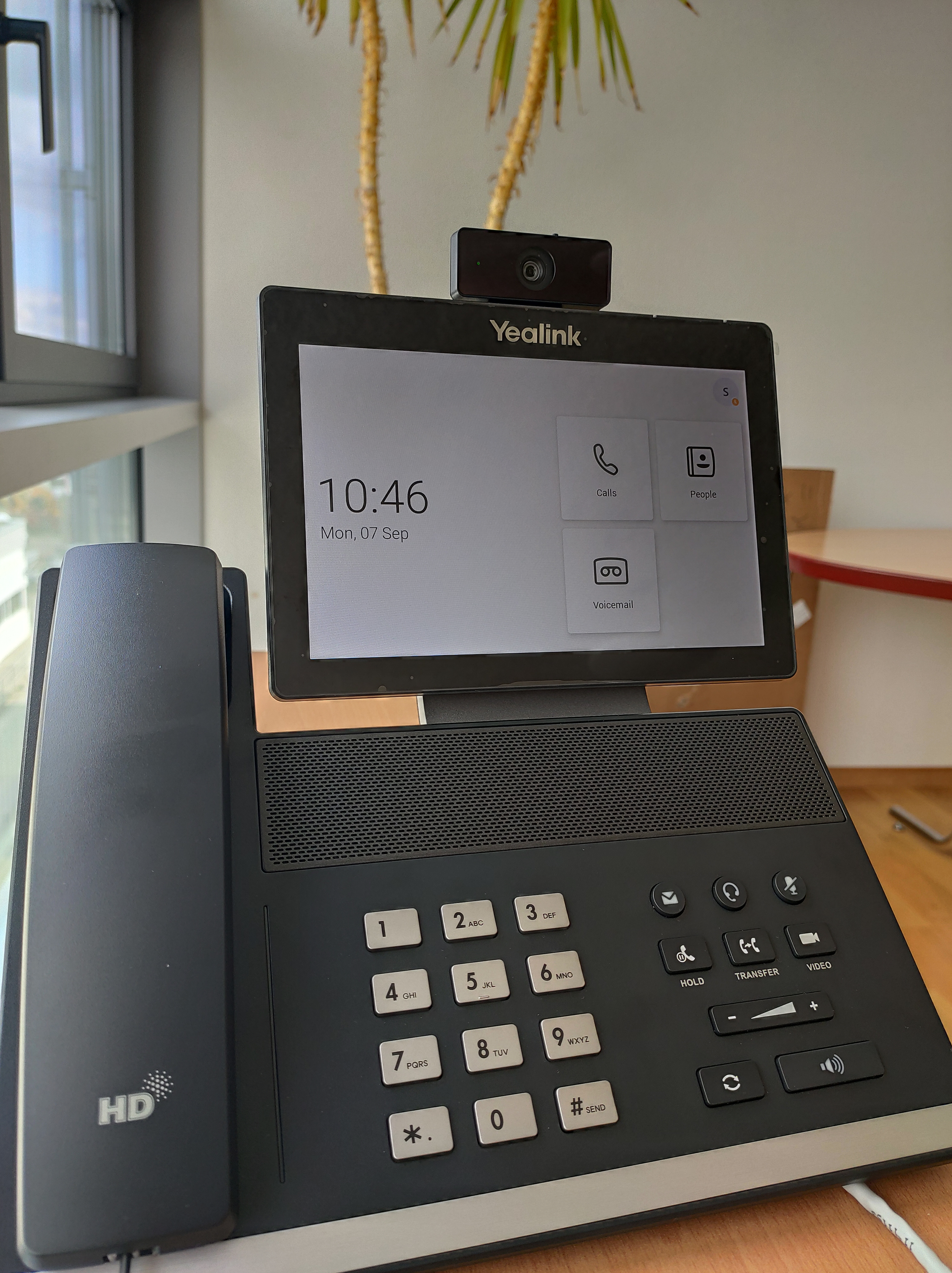
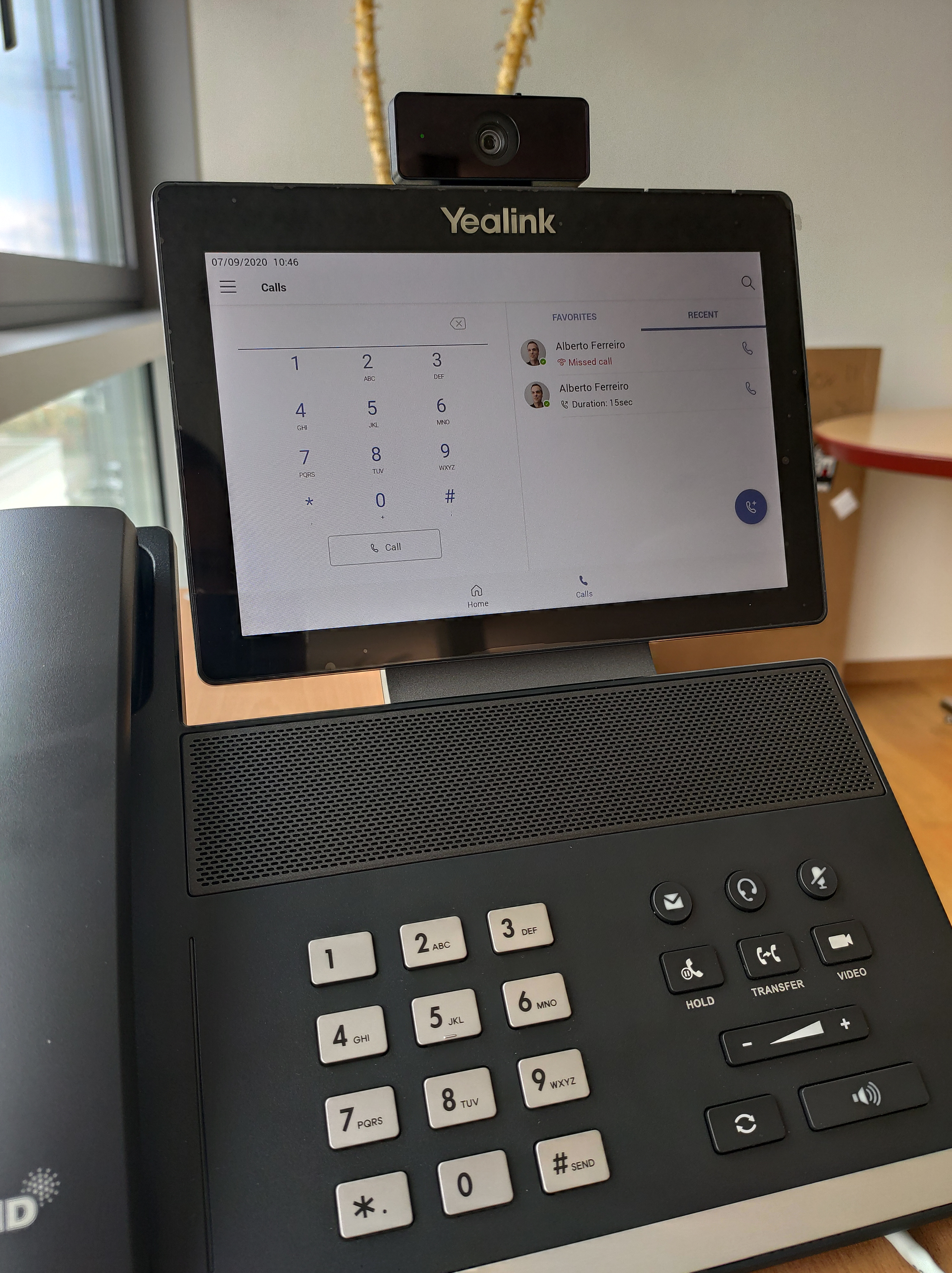
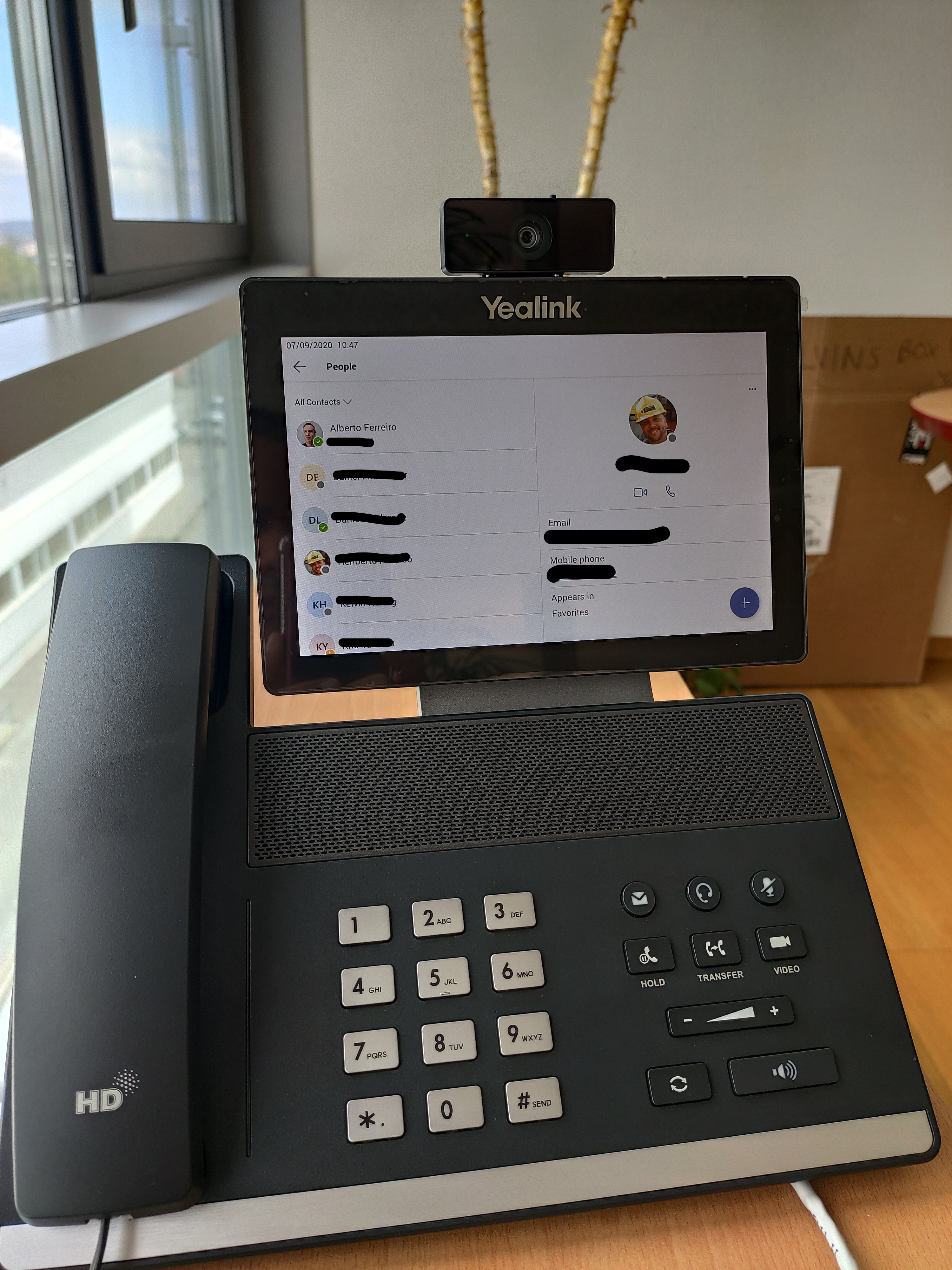
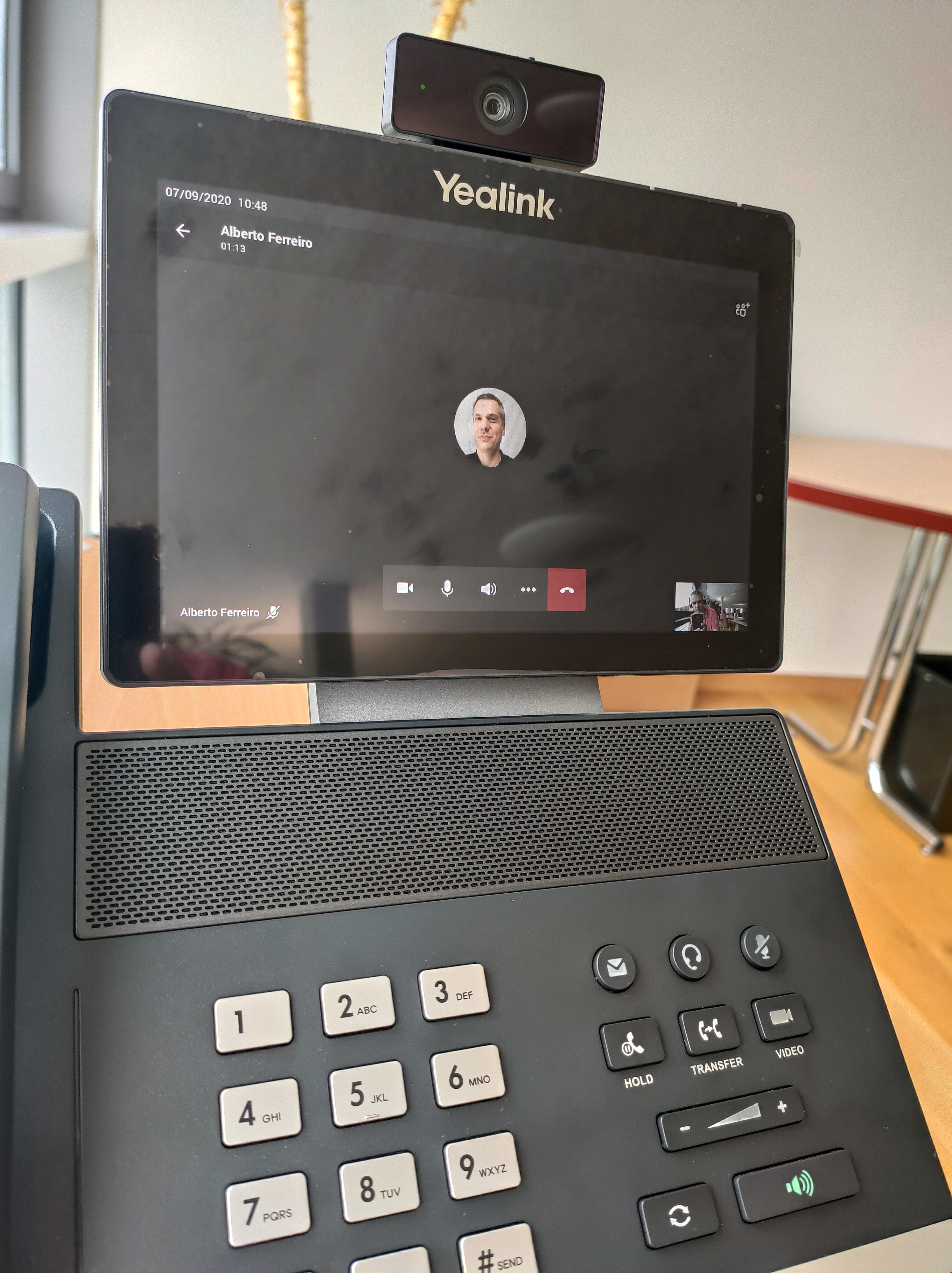
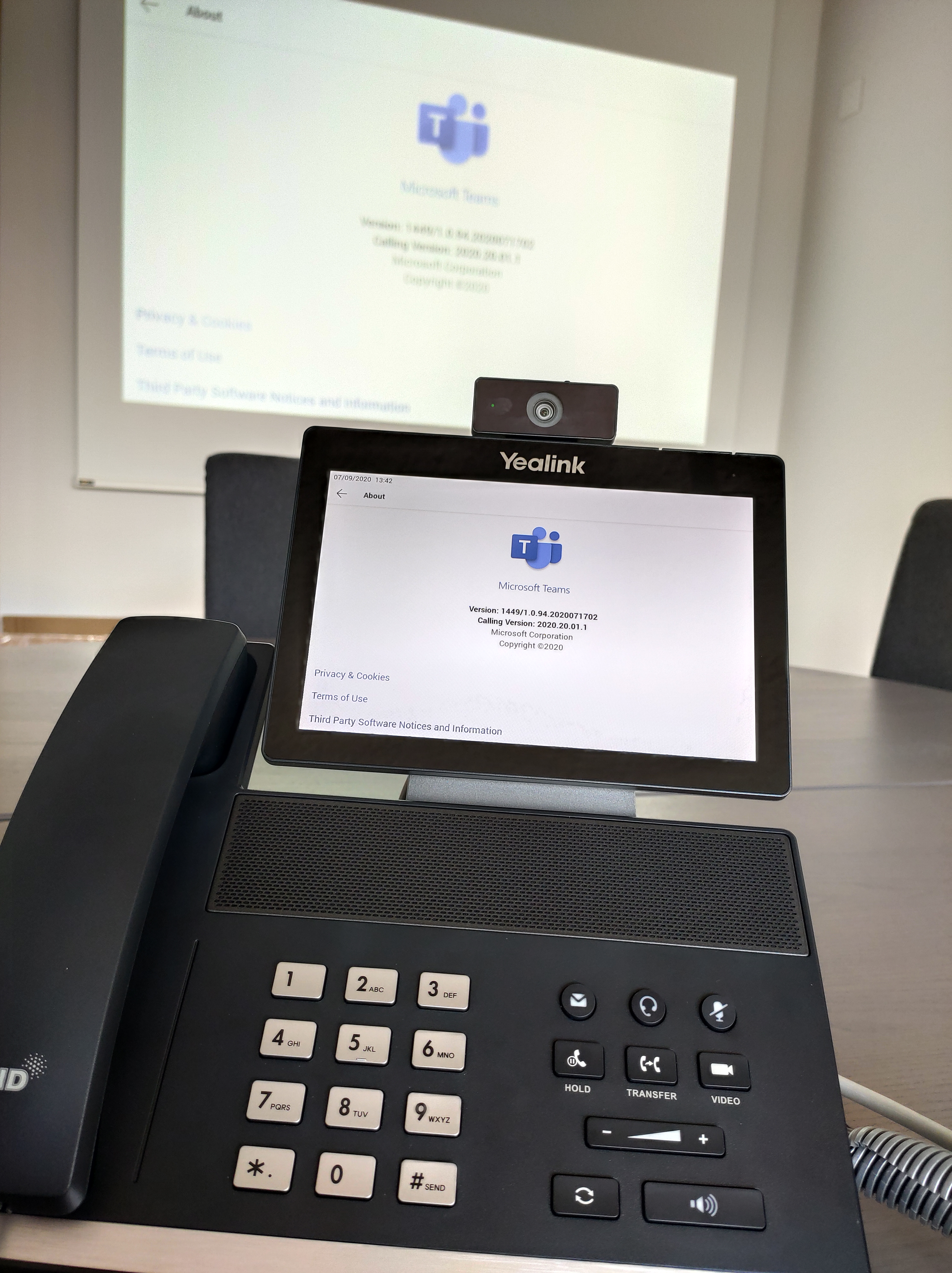
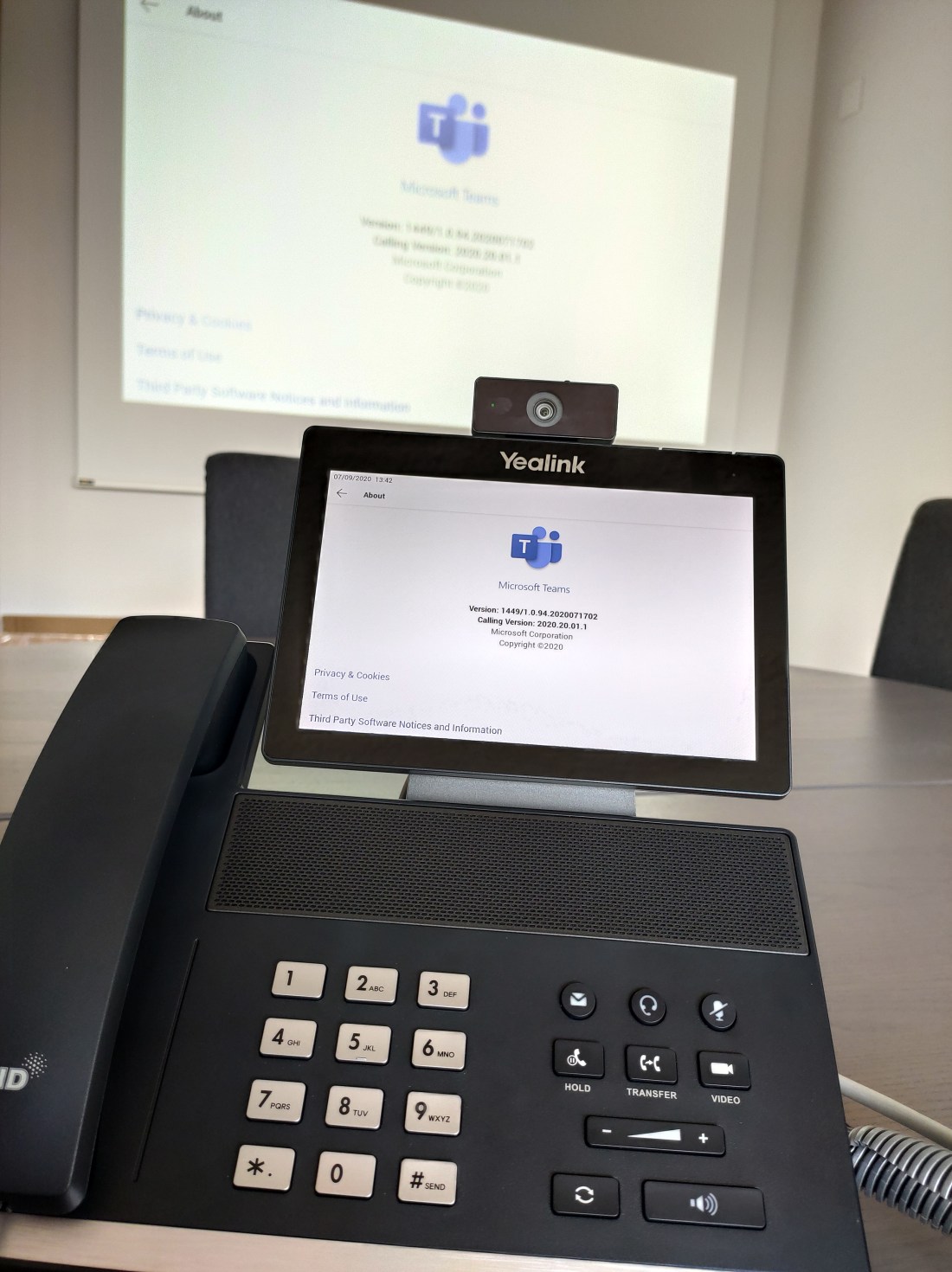
Pour cet article j’ai utilisĂ© un tĂ©lĂ©phone de type YeaLink VP59, qui est le dernier modèle de ce fabriquant

Liste des appareils compatible et certifié par Microsoft


Le téléphone intègre les composants suivants:

  • Ă©cran tactile
  • camera
  • combinĂ© et haut-parleur
  • connexion WIFI et Ethernet Gigabit en PoE (alimentation 230v Ă©galement possible)


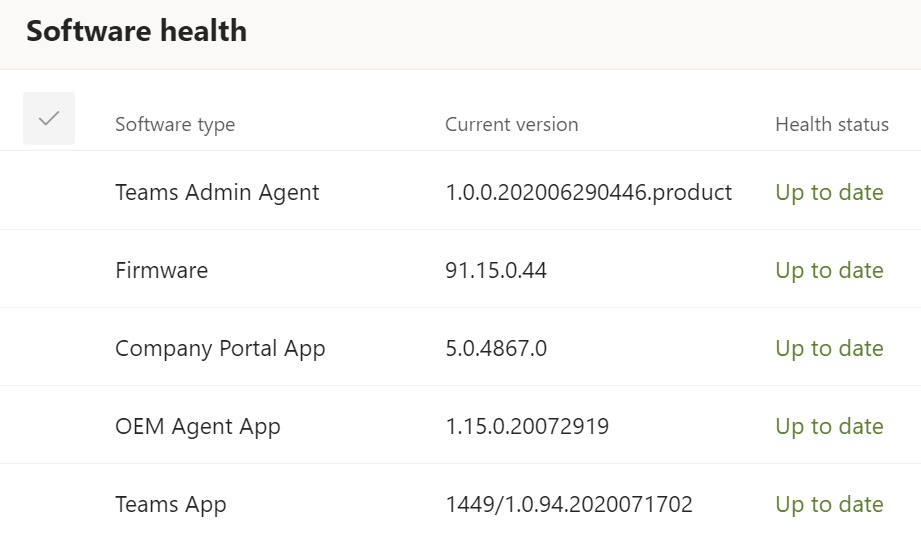
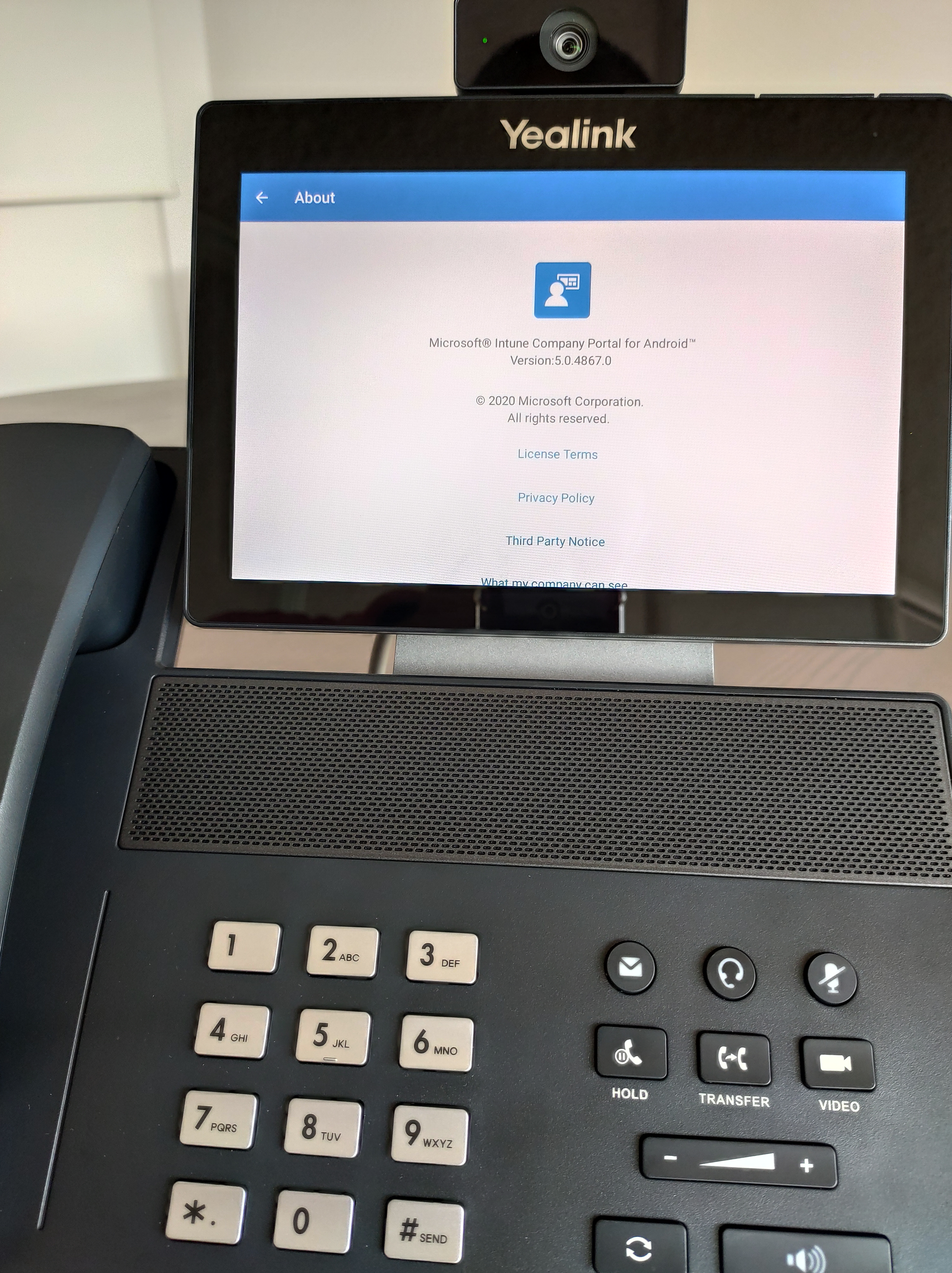
Microsoft Teams est nativement installĂ© sur l’appareil. Les mises Ă  jour du firmware sont disponibles chez le fabriquant directement.


Vous pouvez Ă©galement piloter les mises Ă  jour via des « policies » dans le portail « Teams ». D’autres paramètres sont Ă©galement disponibles comme la gestion de l’Ă©nergie, les heures de bureau, le code dĂ©verrouillage, etc…


Lors d’appel Teams, le tĂ©lĂ©phone se comporte de la mĂŞme manière que sur votre PC. Le carnet d’adresse est disponible pour des appels audio/vidĂ©o


De plus, si vous faites une interconnexion Teams avec votre tĂ©lĂ©phonie VoIP, vous disposez de la mĂŞme expĂ©rience que sur votre PC, c’est Ă  dire la tĂ©lĂ©phonie traditionnelle intĂ©grĂ© dans ce pĂ©riphĂ©rique Teams.


Si cet appareil est configuré dans une salle de conférence, vous pouvez sans autre le brancher sur un écran externe ou votre beamer comme démontré ci-dessous. Vous pourrez ainsi profiter pleinement de la collaboration.


Au niveau des licences Microsoft Teams, vous pouvez assigner une licence au mĂŞme titre que pour un utilisateur (Business, E1, E3 ou E5, etc…), ou alors opter pour une licence de type « Microsoft Teams Rooms Standard »


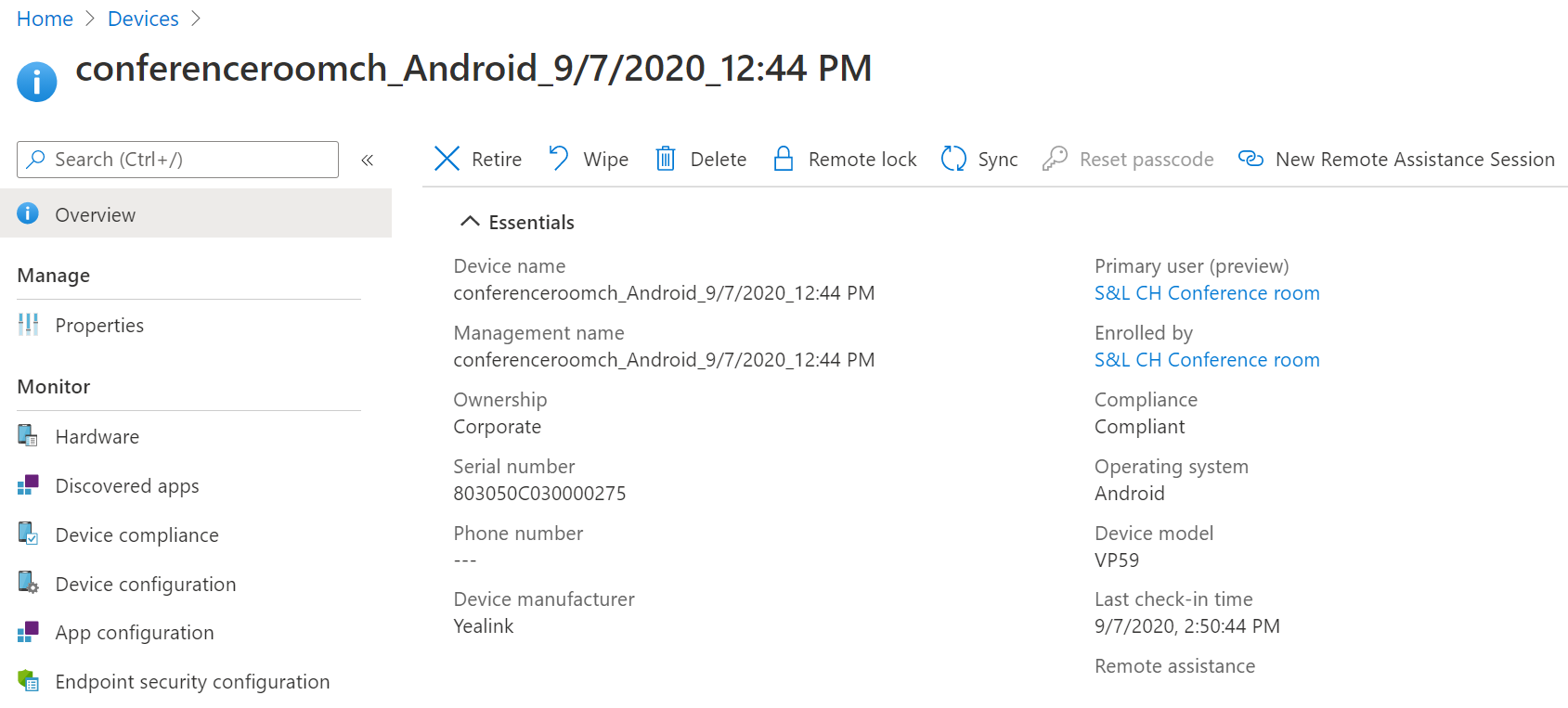
Pour la gestion du tĂ©lĂ©phone, vous pouvez le faire au mĂŞme titre qu’un pĂ©riphĂ©rique Android avec Microsoft Intune. Vous pouvez dĂ©ployer des paramètres additionnel pour une gestion professionnelle et en volume


J’espère que cet article vous aura Ă©clairĂ© sur les pĂ©riphĂ©riques Teams compatibles.

Azure Weather – optimisation d’une Pompe Ă  chaleur avec du solaire


weather

Depuis environ 1 annĂ©e, je bĂ©nĂ©ficie d’une installation solaire ainsi que d’une pompe Ă  chaleur pour la production de l’eau chaude et du chauffage. Pour ma part, la pompe Ă  chaleur ne tient pas compte de la production solaire pour profiter de cette Ă©nergie afin de chauffer la maison et l’eau sanitaire au meilleur moment. Je pense que mon cas de figure concerne Ă©galement la majoritĂ© des installations.

De ce fait, je me suis penchĂ© sur l’optimisation de la production de chaleur en prenant en compte la production solaire actuelle ainsi que les prĂ©visions mĂ©tĂ©o Ă  24h.


Voici les technologies que j’ai utilisĂ©

Mesures électrique

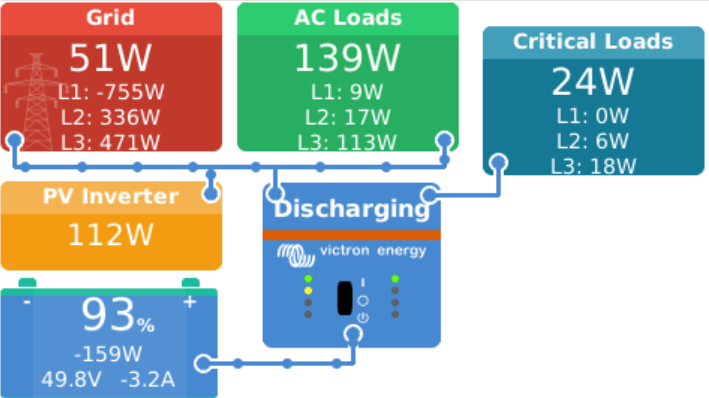
Mesure Ă©lectrique de la consommation Ă©lectrique totale de la maison, la production solaire ainsi que la consommation Ă©lectrique sur le fournisseur d’Ă©lectricitĂ©. L’image ci-dessous provient d’un module « Victron Energy Venux GX »:
En rouge : consommation du compteur (fournisseur d’Ă©lectricitĂ©)
En vert : consommation totale de la maison (y compris pompe Ă  chaleur)
En jaune : production solaire
En bleu : batterie de stockage

smartes1


Piloter la Pompe Ă  Chaleur

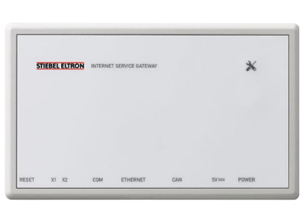
Ma pompe Ă  chaleur dispose d’un module Stiebel Eltron IP afin de lire des valeurs ainsi que d’y Ă©crire des paramètres en Modbus TCP

300x220_isg-web


Azure Maps – Weather

auuremaps

Azure Maps, offre la fonctionnalitĂ© d’optenir les prĂ©vision mĂ©tteo sur la durĂ©e de votre choix. Dans mon cas, j’utilise les prĂ©visions Ă  24h

https://docs.microsoft.com/en-us/azure/azure-maps/weather-services-concepts


Algorithme de paramétrage

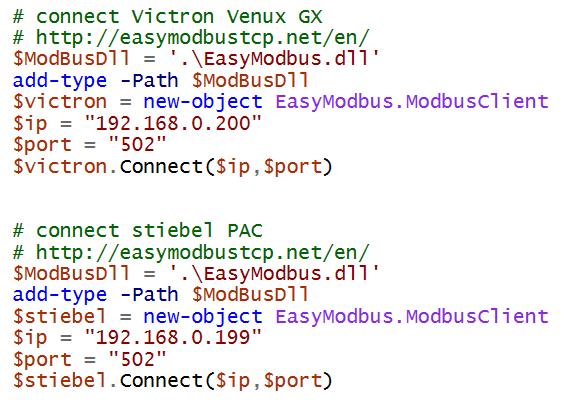
Dans mon cas j’ai utilisĂ© un script en PowerShell afin d’intĂ©ragir avec l’ensemble des composants. Les composants « Victron Energy » et « Stiebel » se connectent en Modbus-TCP, et Azure Weather avec une API Web. Pour le reste, la logique de l’algorithme se fait en PowerShell don’t voici quelques extraits:

ps2ps1


Si vous souhaitez d’avantage d’information sur ce procĂ©dĂ©, n’hĂ©sitez pas Ă  me contacter. Je vous aide volontier.

Outlook automated Out Of Office

Hi,

Are you interrested with an Outlook Automated Out Of Office ?

If yes, you are in the correct place. In my life I have to deal with some family duties and to consiliate with my work as a Cloud Architect, I’m taking some days off on a regular basis. My problem with that, I always forget to set the Out Of Office in my Outlook !

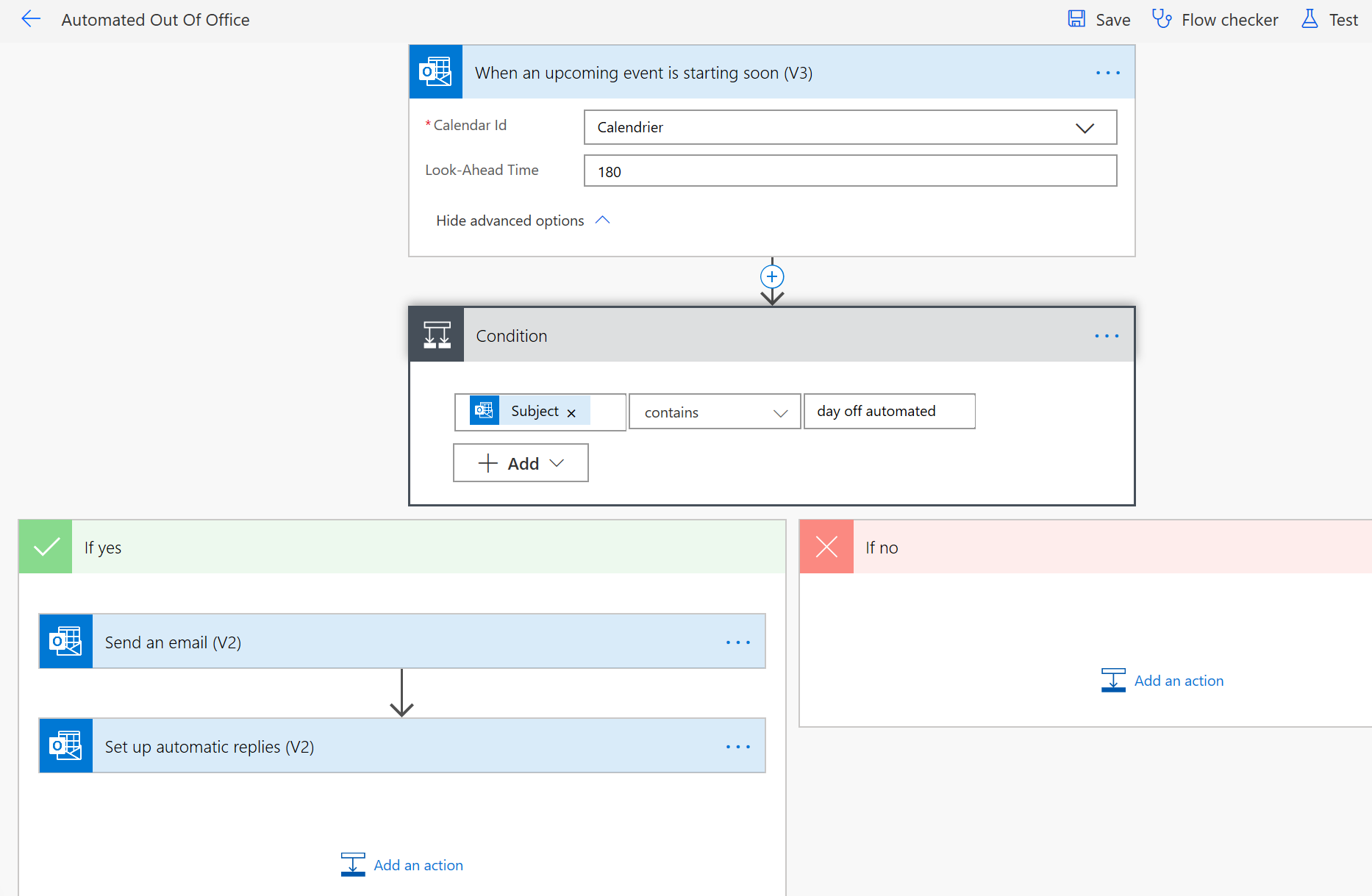
To resolve that, I used « Microsoft Office 365 – Power Automate » to create a flow with the following logic.

1- If the flow detect a meeting in my calendar called « day off automated »
-yes : set the Out Of Office with Internal and External message for the duration of the blocker
-no : don’t do anything

powerautomate1


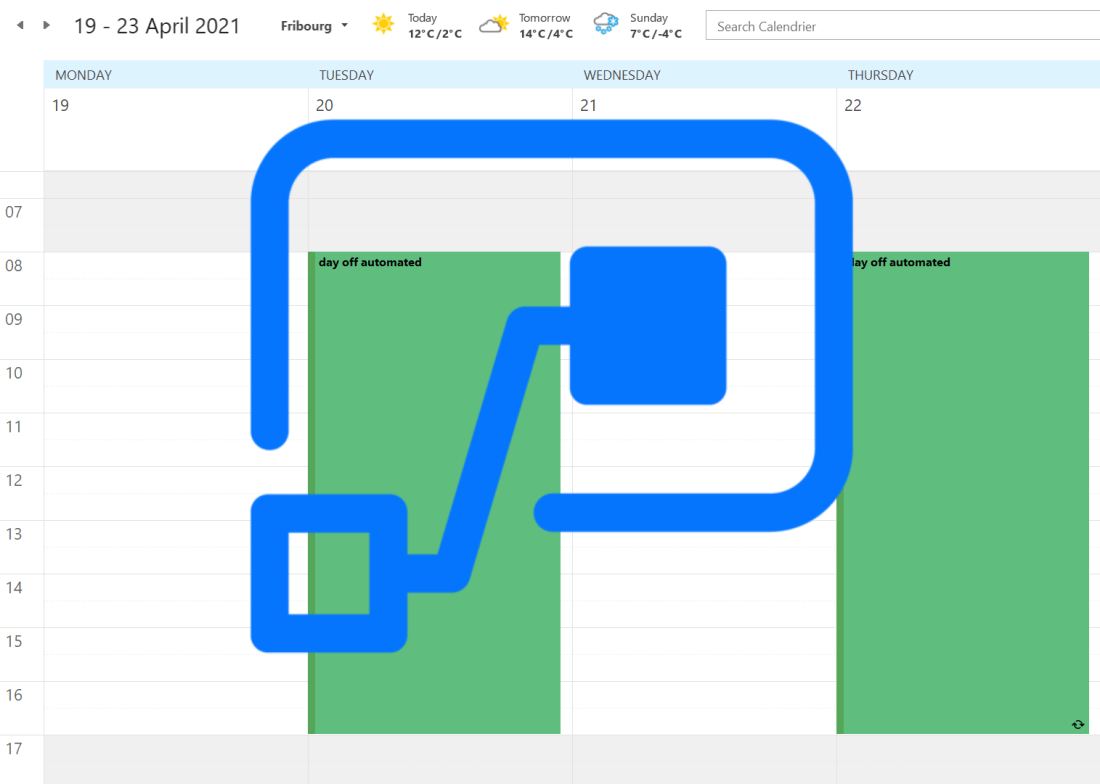
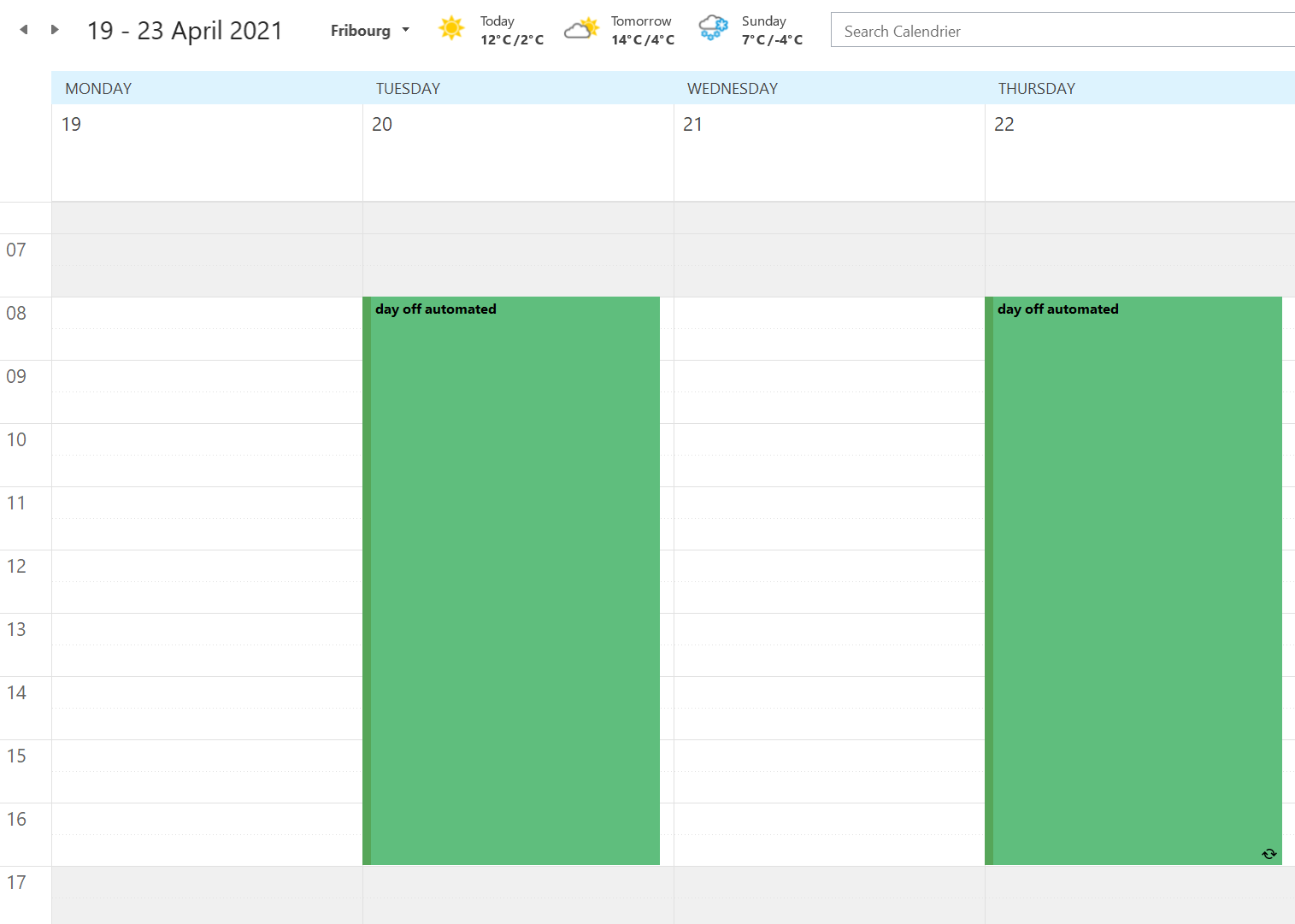
If I enter a blocker in my Outlook like this :

powerautomate2

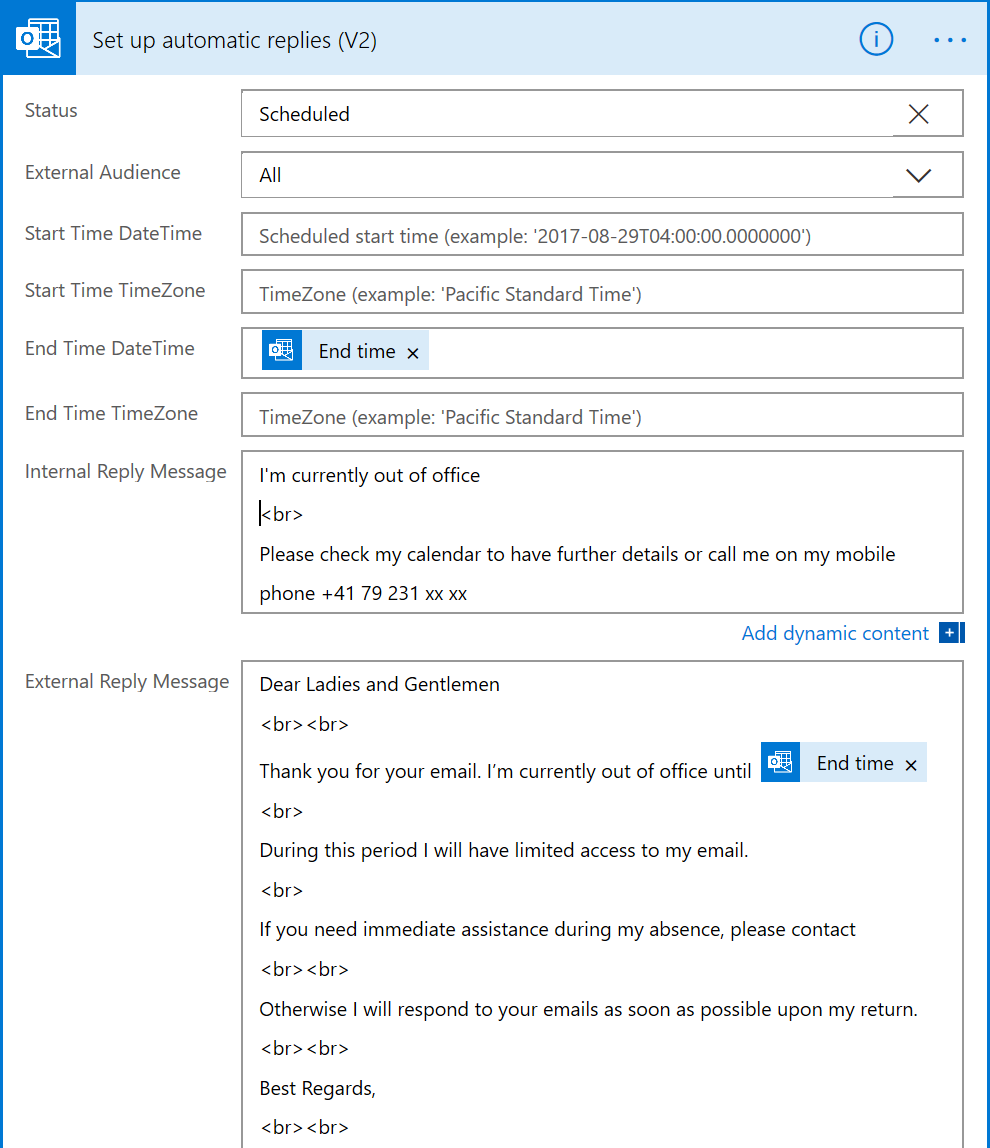
My Outlook Out Of Office will be set like that :

powerautomate3


I hope this will helpful for you. Enjoy !

Intune to configure one VPN connection to reach your Azure and on-premise

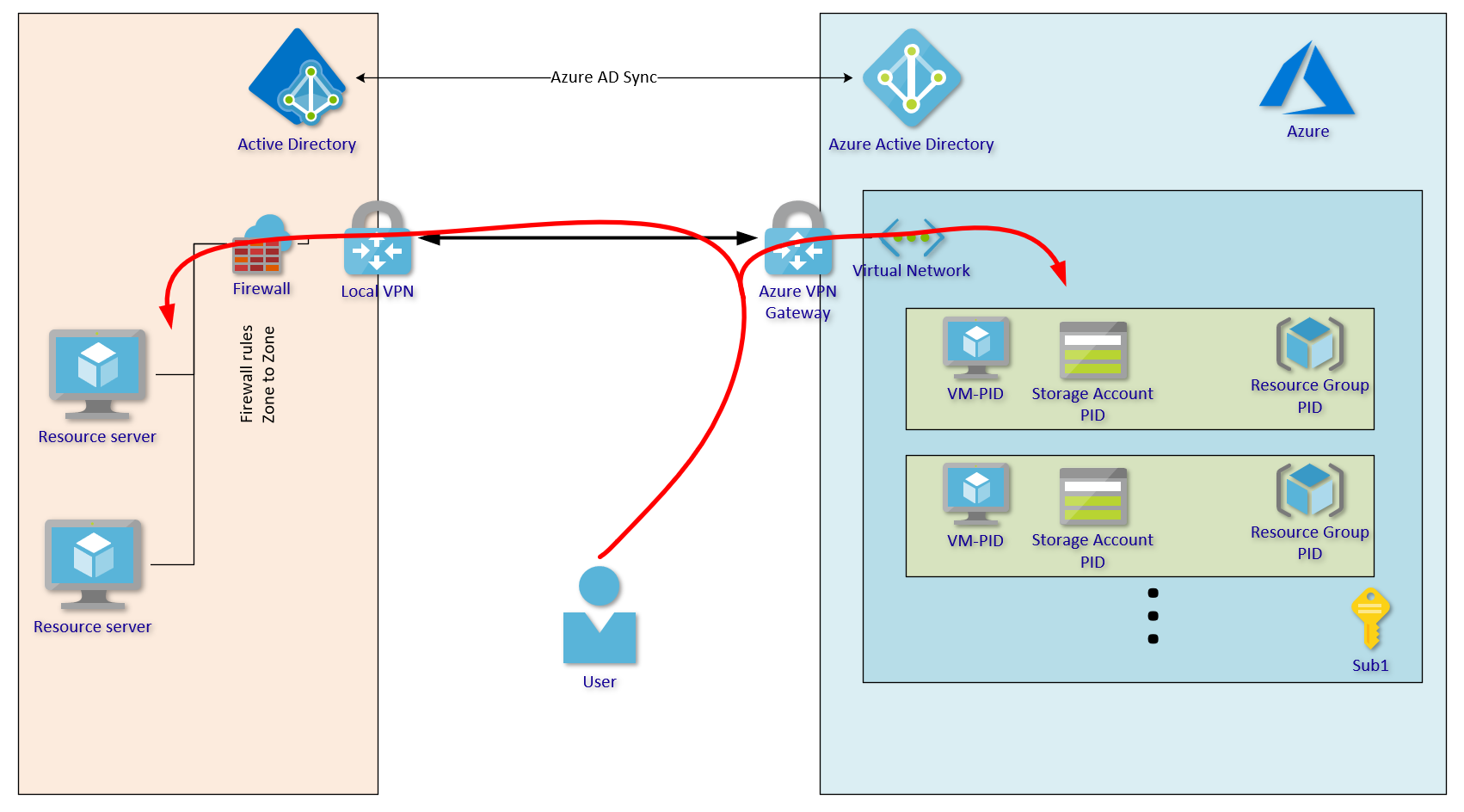
This article describes you how to configure an Azure VPN Intune profile. This profile will contain the configuration about the Azure VPN Point 2 Site.

The scenario is the following. You have established a VPN between your on-premise and Azure (with BGP routing), and now you want with your laptop access the resources in both places with only one VPN connection. This VPN connection will start automatically without any prompt when you are outside your company.


STEP 1 – Configure the Azure VPN P2S

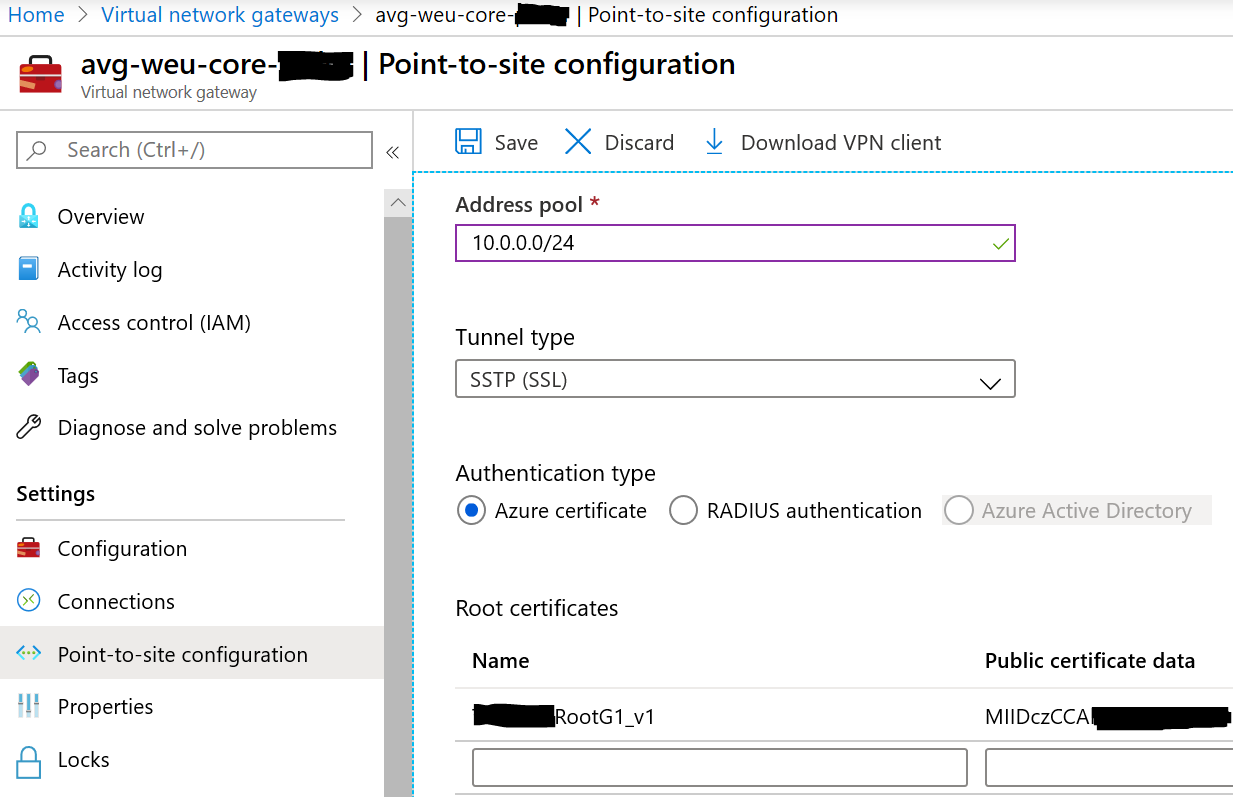
Go to your Azure Virtual Network Gateway, and select the tab « Point-to-site configuration »

Enter an IP range (not in conflict with other routed networks), this range will be used by your remote laptops

Select « Azure certificate » to work without any prompt. You need enter the name of your ROOT Certificate authority, and the « public certificate data » coded in base64.

When the configuration is finished, download the VPN client, and extract the files inside the ZIP archive.


STEP 2 – Get the informations

From the data you get, please open the GENERIC folder and open the VPNSETTINGS.XML

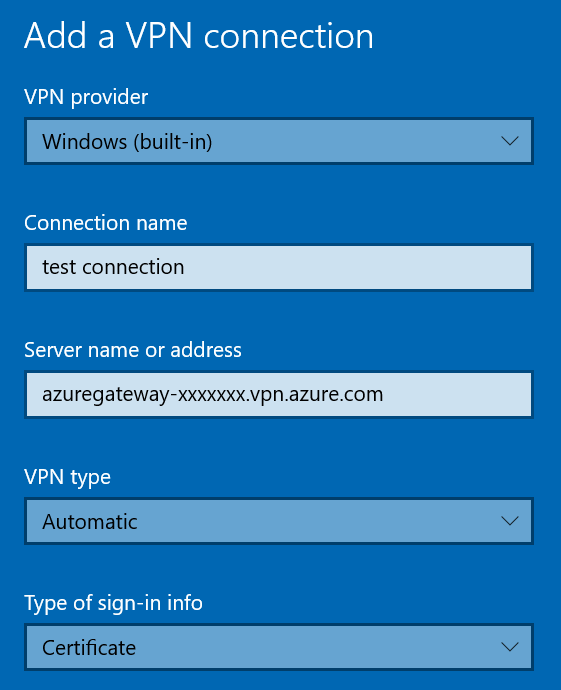
Look for the value of <VpnServer>, looks like « azuregateway-xxxxxx.vpn.azure.com« . This value is the Azure VPN Server name

Additionnaly, we need to identify the SSL Server certificate thumbprint. The only way that is found, if to create from scratch on your Windows 10 computer a new VPN connection, by entering the corresponding informations.

When open a PowerShell console and type the following command

$vpn = Get-VpnConnection -Name “test connection”
$vpn.EapConfigXmlStream.InnerXml

then copy the output, and consider it as the XML configuration.


STEP 3 – configure your Intune profile

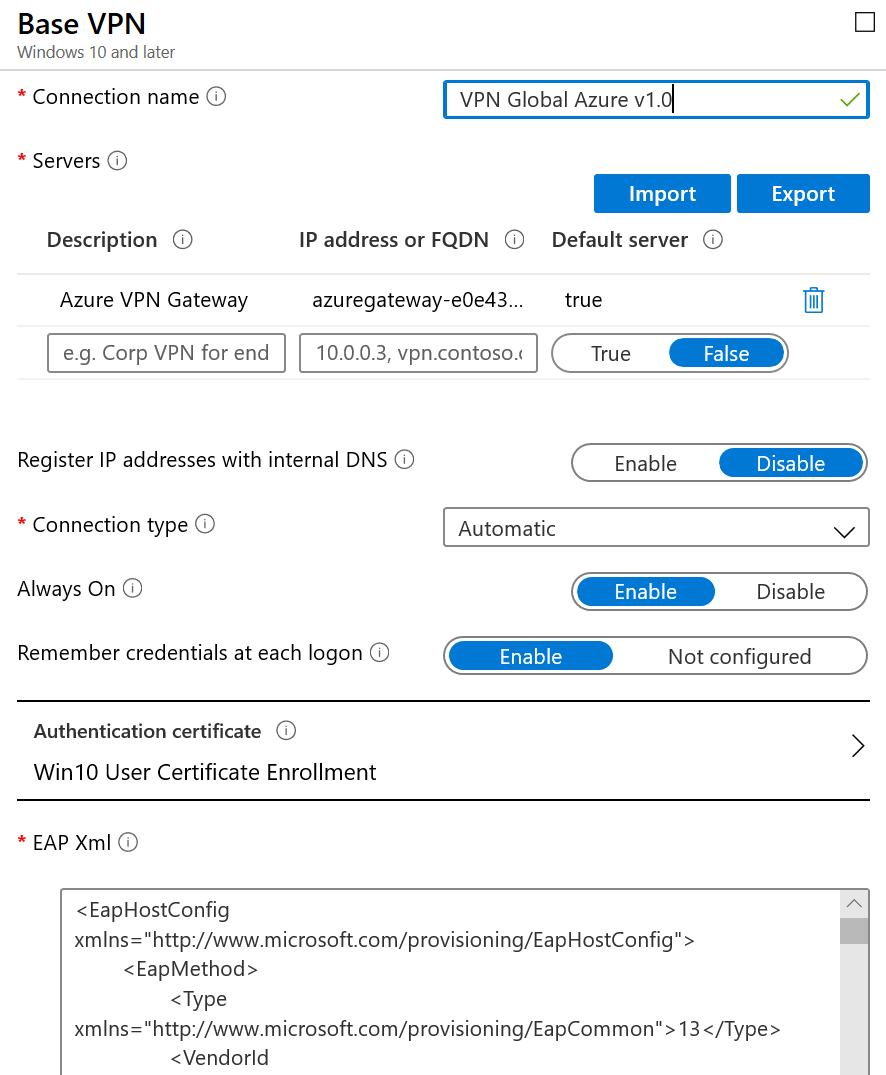
Create a new Intune configuration and select the VPN profile.

Enter the Azure VPN Server name on the « Servers » list. Set the description you want.

On the parameter « EAP XML », you can paste the previous XML configuration


Finally, navigate to the next parameters on the Intune profile and configure what is suitable for you, like the Split tunneling and the Trusted Network Detection.

Hope you enjoyed


Azure Policy – VM password requirements

When creating a Virtual Machine in the Azure environment, you have to follow some requirements in terms of password lenght. By default Microsoft enforce 12 caracters. But what happens if your corporate policy requires 20 or 25 caracters ?

To achieve that, you can implement an Azure Policy that will ensure when a new VM is created, your corporate policy will be enforced (only if more restrictive that Microsoft default)

Here you will find the code to create your custom policy. This sample specify the requirement of 20 password characters or an SSH Public key for Linux machines.

Hope this will help you to achieve more !


   « policyRule »: {
      « if »: {
        « allof »: [
          {
            « field »: « type »,
            « equals »: « Microsoft.Compute/virtualMachines »
          },
          {
            « not »: {
« anyof »: [
                {
                  « value »: « [greaterOrEquals(length(field(‘Microsoft.Compute/virtualMachines/osProfile.adminPassword’)), 20)] »,
                  « equals »: true
                },
                {
                  « field »: « Microsoft.Compute/virtualMachines/osProfile.linuxConfiguration.disablePasswordAuthentication »,
                  « equals »: true
                }
              ]
            }
          }
        ]
      },
      « then »: {
        « effect »: « deny »
      }
    }

A new era has come, the end of passwords

Last week, Microsoft just released the public preview of the « password-less login »

Till last week, this functionnally only works with « Microsoft accounts ». Now Microsoft has push this technology to « Azure AD », which means you can use it on your Enterprise with Azure and Office 365. Instead of using a password, you can only use USB or NFC security key !

To enable this feature, you should follow a few steps decribed bellow. It’s very easy.


Requirements

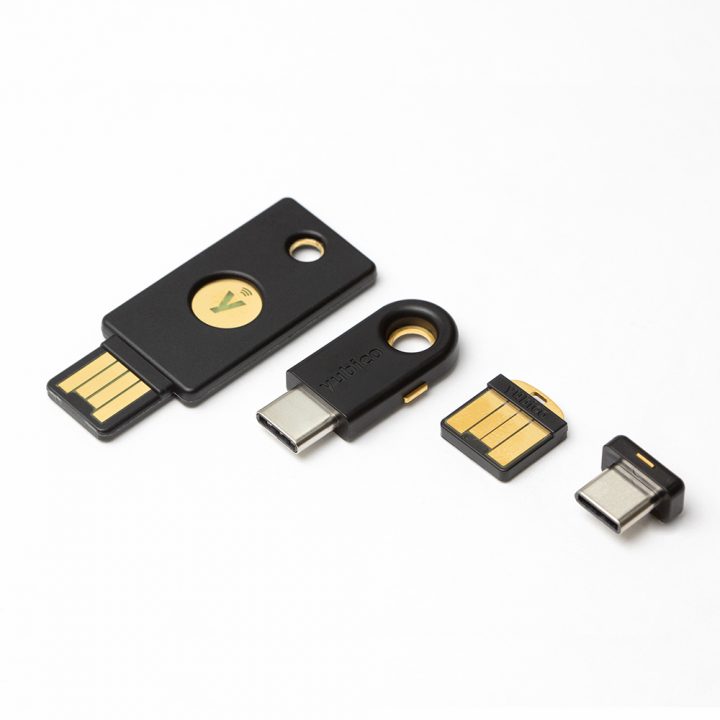
Please, be sure that you have a « security key » which is compatible FIDO2.

Personnally I’m using the Yubikey 5

https://www.yubico.com/

yubikey-5-family-720x720

Use a web browser like EDGE, but be sure that it is up to date. Don’t try to enroll with a « private session » or « icognito ». The process will fail with the user enrollment.


STEP 1 – Enable password-less feature on Azure AD

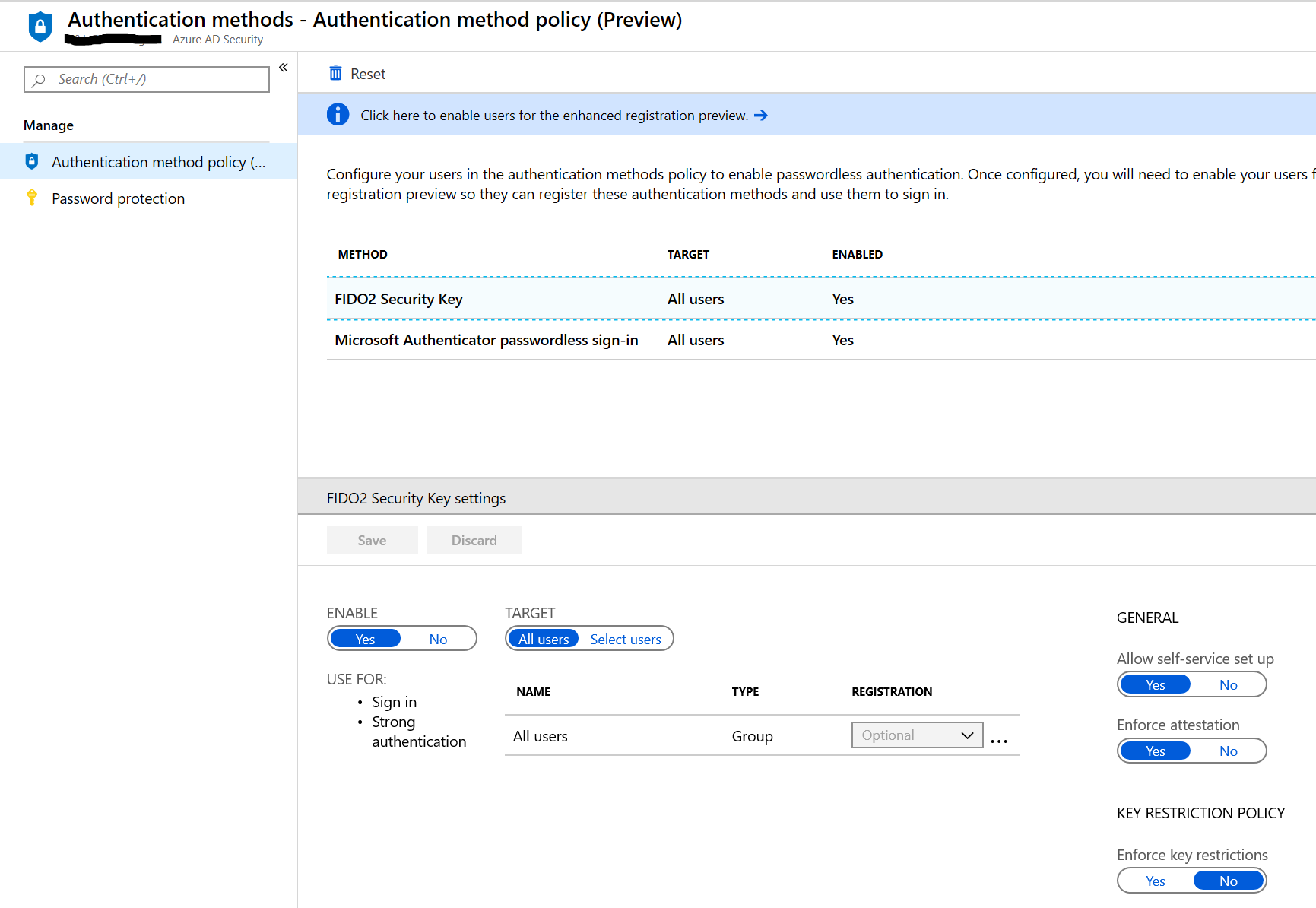
Go to your Azure Active Directory and select « authentication methods ».

Enable the feature « FIDO2 Security Key » for all users, or a subset of users.

Capture5


STEP 2 – Enroll your first user


Now the feature is enabled on your tenant, you can proceed to enroll your first user.

With your selected account, go to your azure user profile

https://account.activedirectory.windowsazure.com/

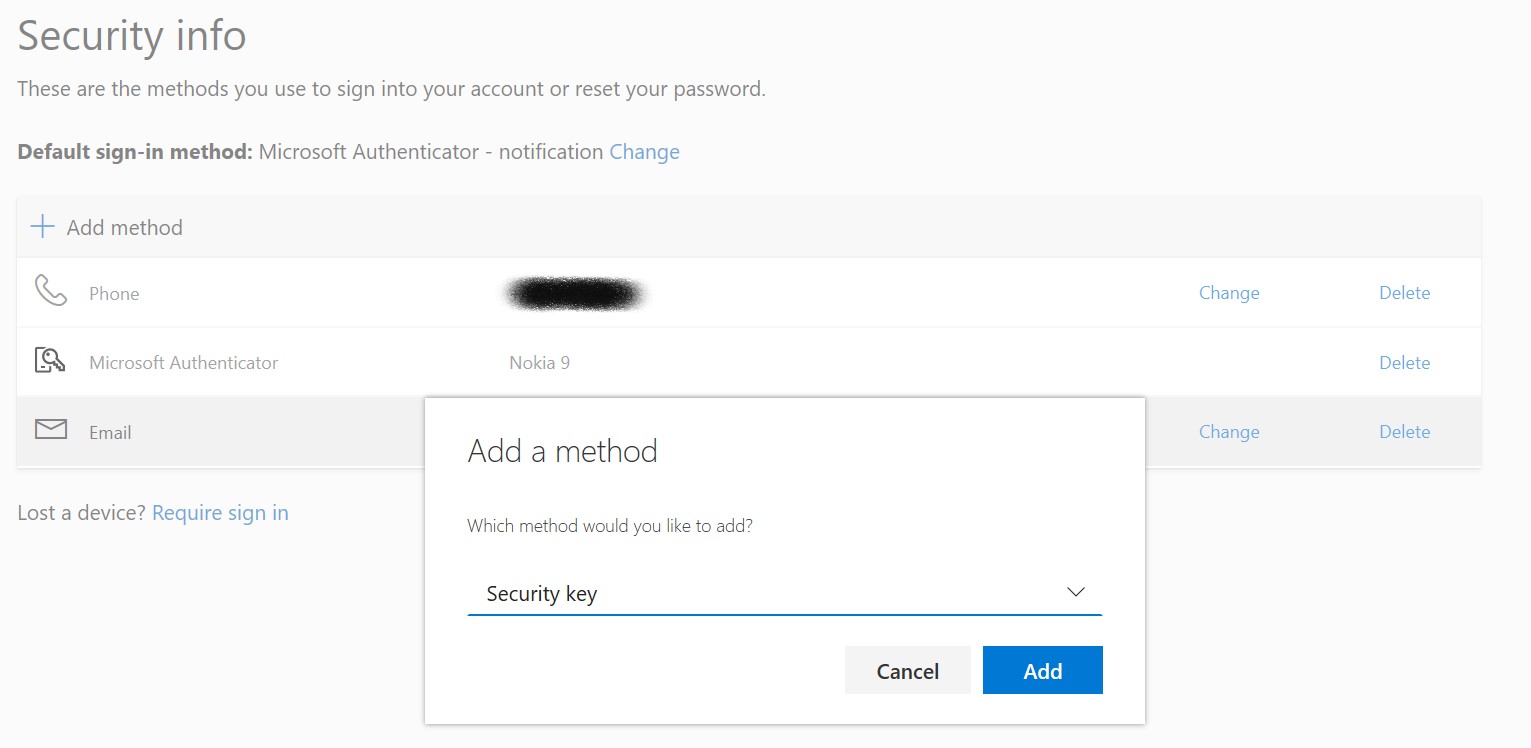
and go to « Edit security info » and « Add Method« , select « Security key »

Capture6.PNG


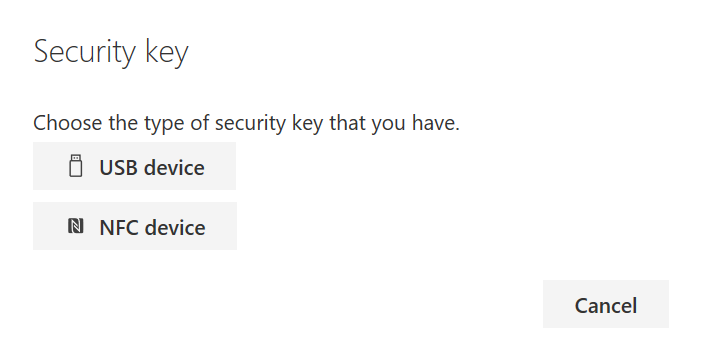
then select if your key is connected throught « USB » or « NFC »

Capture2

Finally, you will be prompted to enter your PIN and select the name of the « security key » in case you have multiple.


STEP 3 – Login with your Security Key


You are now ready to login without any password, only with the help of your security key 🙂

You can test it by going to the Azure Portal, or Office 365 apps. On the login page just select « Security Key » directly on the page, or on the « sign-in options »

Please be aware of you can have multiple identities in one « security key », during the login process, after the PIN, you will be prompted to select which identity you want to use.


STEP 4 – Manage you Yubikey

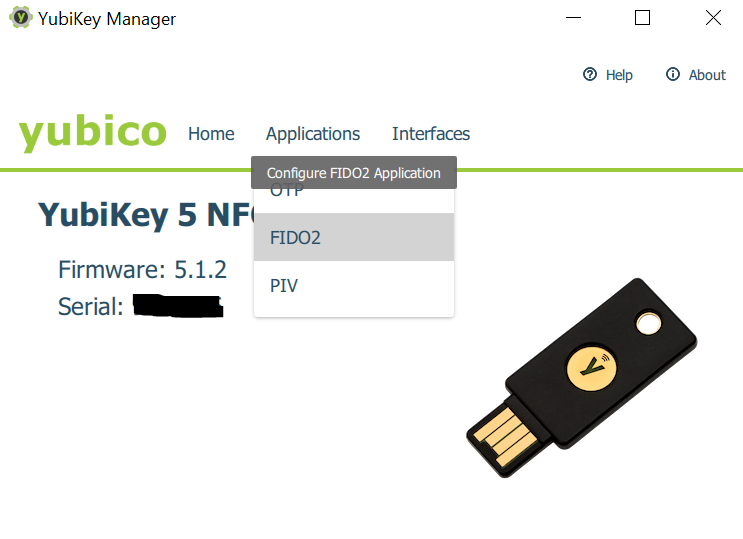
If you are using the Yubikey, i recommend you to use the « YubiKey Manager » to manage everything arround the key, like the PIN, Reset, setup the smartcard and certificates, etc…

Capture8

Microsoft Intune – how to configure Sonicwall NetExtender VPN client

This article will explain you how to configure with Microsoft Intune the Dell Sonicwall NetExtender VPN client.

Step 1

Use this small piece of PowerShell script and customize it with your own parameters like the Sonicwall VPN Server

#Prerequisites : the Dell Sonicwall NetExtender should already be installed on the computer before to run the script
cd « C:\Program Files (x86)\SonicWall\SSL-VPN\NetExtender »
$VPNServer = « vpn.server.com »
$VPNDomainName = « VPN »
$VPNPassword = «  » #if you want to provision the password
## uncomment the next line if you want the VPN username equal to the computer name
#$account = $env:computername
## uncomment the next line if you want the VPN username equal to the UPN of the logged user
#$account = whoami /upn
.\NECLI.exe addprofile -s $VPNServer -u $account -p $VPNPassword -d $VPNDomainName


Step 2

Define in Intune the script deployment and assign the configuration to the « user »

Go to Intune, Device Configuration and finally to PowerShell Scripts

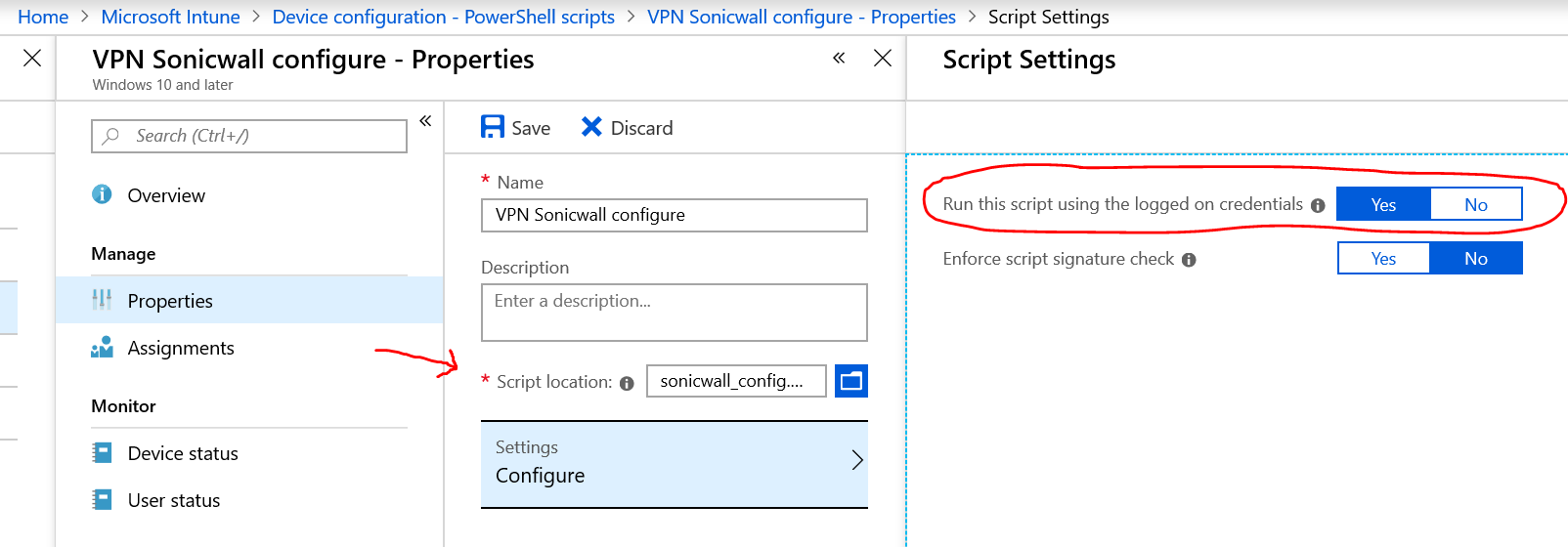
Enter the name for this script, specify the script location and don’t forget to set to YES « Run this script using the logged on credentials »

sonicwall


Step 3

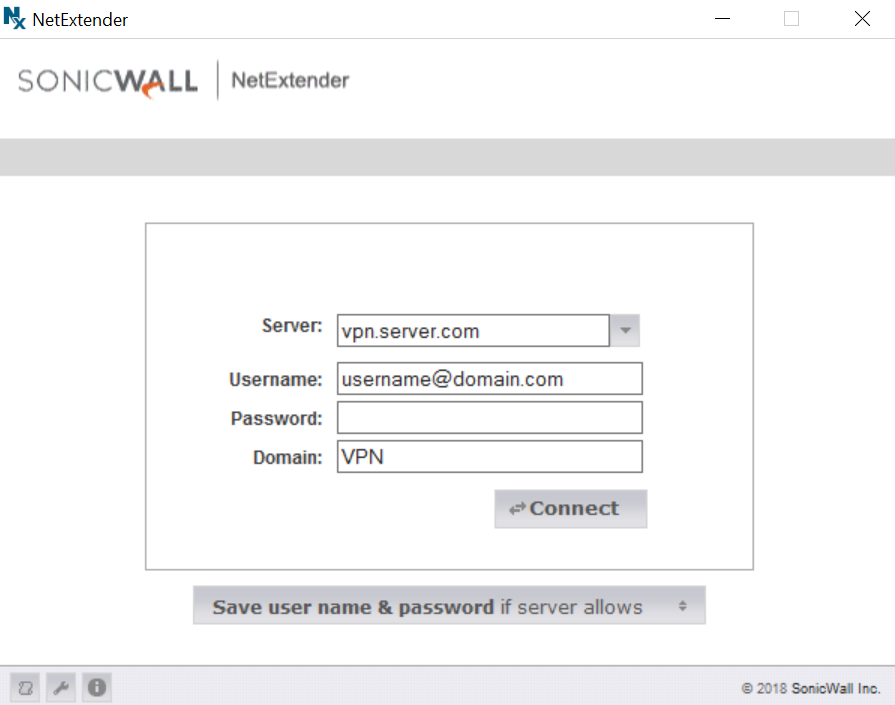
After a successfully Intune deployment, you can start using the NetExtender, you just need to fill the password and click Connect.

Enjoy !

sonicwall1


Design Thinking – phase 6 – ImplĂ©mentation

Vous voilà fin prêt à réaliser ce que vous avez prototypé avec vos utilisateurs.

Si vous avez correctement fait l’exercice, votre produit final devrait correspondre aux attentes des utilisateurs.

En utilisant cette méthode, vous allez obtenir au minimum les bénéfices suivants:

  • les utilisateurs vont « aimer » votre produit, ils l’ont construit avec vous
  • Les participants du projet se sentent impliquĂ©s et Ă©vangeliseront la solution auprès des autres collaborateurs. L’adoption en sera d’autant plus facilitĂ©e.
  • Les dĂ©cideurs auront confiance pour la phase de rĂ©alisation, car ils savent que ça correspond aux attentes.

Vous pouvez maintenant dĂ©marrer votre projet classique avec la planification de rĂ©alisation, les budgets, les ressources, etc…etc…

Design Thinking – phase 5 – les tests & ateliers

Voici arrivé le moment de vérité !

Lors de cette Ă©tape, vous allez confronter votre prototype Ă  la rĂ©alitĂ© des utilisateurs. (rappelez-vous que l’utilisateur a toujours raison). Ceci vous permettra de tester votre premier prototype et voir ce qui plait et ce qui plait moins !

Je vous conseille d’organiser un atelier de « co-crĂ©ation » avec les utilisateurs de la première phase. GĂ©nĂ©ralement, ce genre d’atelier a pour objectif de valider vos observations et de mieux comprendre les attentes des utilisateurs face Ă  votre prototype.

Je vous propose de structurer votre atelier de la façon suivante (macro agenda)

  • Validez que vos observations sont correctes (Pains et Gains)
  • Laissez les utilisateurs prioriser les Ă©lĂ©ments
  • Montrez votre prototype (vidĂ©o, papier, thĂ©atre, etc…)
  • Laissez les participants imaginer leur propre prototype
  • Partagez les feedback

Vous repartirez de votre atelier de « co-creation » avec de prĂ©cieuses informations qui vous permettrons de continuer, par iteration, d’amĂ©liorer votre prototype et de le rendre ainsi de plus en plus tangible. Dès que votre prototype aura une maturitĂ© suffisante, vous pourrez commencer Ă  Ă©crire du code informatique et installer des « trucs » 🙂

Continuez vers la phase 6 – ImplĂ©mentation

Revenir l’article de base