
Last week, Microsoft just released the public preview of the « password-less login »
Till last week, this functionnally only works with « Microsoft accounts ». Now Microsoft has push this technology to « Azure AD », which means you can use it on your Enterprise with Azure and Office 365. Instead of using a password, you can only use USB or NFC security key !
To enable this feature, you should follow a few steps decribed bellow. It’s very easy.
Requirements
Please, be sure that you have a « security key » which is compatible FIDO2.
Personnally I’m using the Yubikey 5
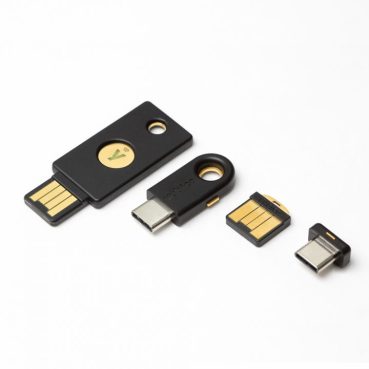
Use a web browser like EDGE, but be sure that it is up to date. Don’t try to enroll with a « private session » or « icognito ». The process will fail with the user enrollment.
STEP 1 – Enable password-less feature on Azure AD
Go to your Azure Active Directory and select « authentication methods ».
Enable the feature « FIDO2 Security Key » for all users, or a subset of users.

STEP 2 – Enroll your first user
Now the feature is enabled on your tenant, you can proceed to enroll your first user.
With your selected account, go to your azure user profile
https://account.activedirectory.windowsazure.com/
and go to « Edit security info » and « Add Method« , select « Security key »
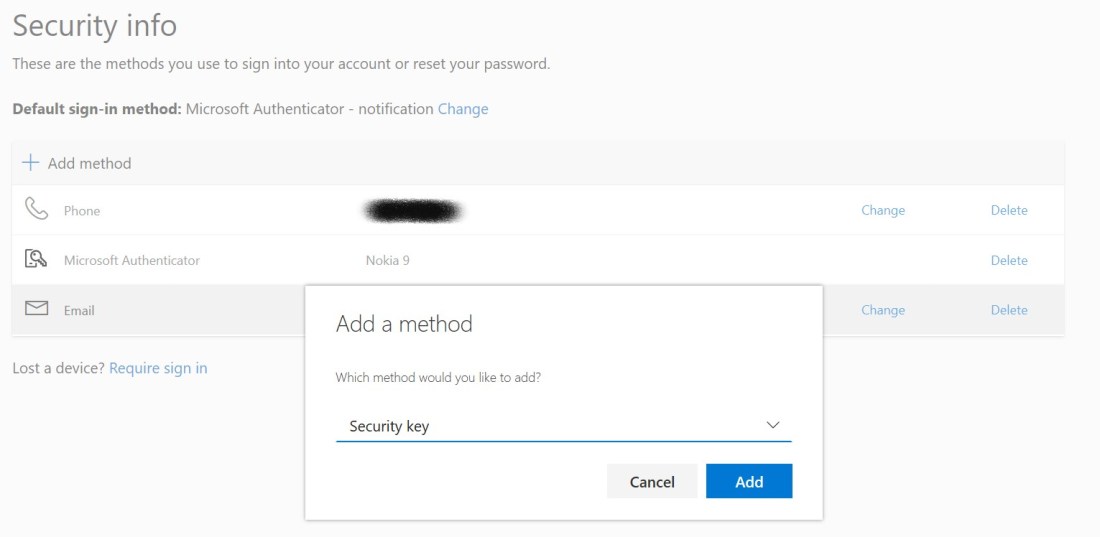
then select if your key is connected throught « USB » or « NFC »

Finally, you will be prompted to enter your PIN and select the name of the « security key » in case you have multiple.
STEP 3 – Login with your Security Key
You are now ready to login without any password, only with the help of your security key 🙂
You can test it by going to the Azure Portal, or Office 365 apps. On the login page just select « Security Key » directly on the page, or on the « sign-in options »


Please be aware of you can have multiple identities in one « security key », during the login process, after the PIN, you will be prompted to select which identity you want to use.
STEP 4 – Manage you Yubikey
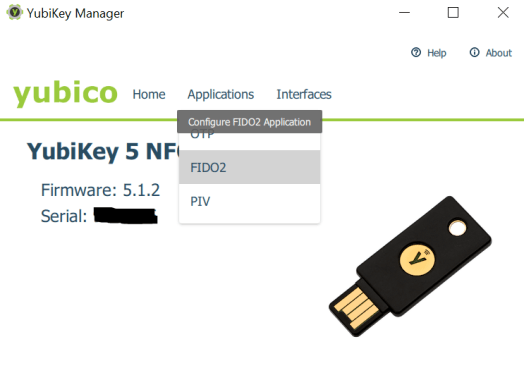
If you are using the Yubikey, i recommend you to use the « YubiKey Manager » to manage everything arround the key, like the PIN, Reset, setup the smartcard and certificates, etc…
 Welcome to get-Ready