
This article describes you how to configure an Azure VPN Intune profile. This profile will contain the configuration about the Azure VPN Point 2 Site.
The scenario is the following. You have established a VPN between your on-premise and Azure (with BGP routing), and now you want with your laptop access the resources in both places with only one VPN connection. This VPN connection will start automatically without any prompt when you are outside your company.
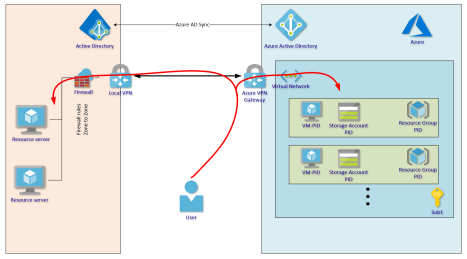
STEP 1 – Configure the Azure VPN P2S
Go to your Azure Virtual Network Gateway, and select the tab « Point-to-site configuration »
Enter an IP range (not in conflict with other routed networks), this range will be used by your remote laptops
Select « Azure certificate » to work without any prompt. You need enter the name of your ROOT Certificate authority, and the « public certificate data » coded in base64.
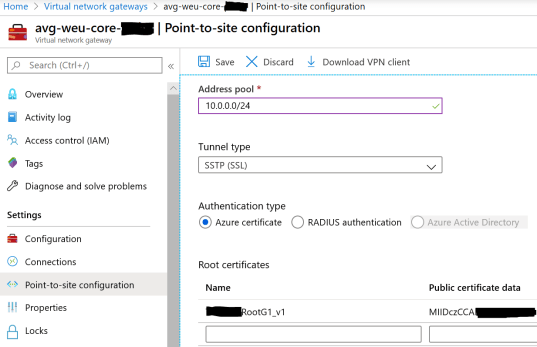
When the configuration is finished, download the VPN client, and extract the files inside the ZIP archive.
STEP 2 – Get the informations
From the data you get, please open the GENERIC folder and open the VPNSETTINGS.XML
Look for the value of <VpnServer>, looks like « azuregateway-xxxxxx.vpn.azure.com« . This value is the Azure VPN Server name
Additionnaly, we need to identify the SSL Server certificate thumbprint. The only way that is found, if to create from scratch on your Windows 10 computer a new VPN connection, by entering the corresponding informations.

When open a PowerShell console and type the following command
$vpn = Get-VpnConnection -Name “test connection”
$vpn.EapConfigXmlStream.InnerXml
then copy the output, and consider it as the XML configuration.
STEP 3 – configure your Intune profile
Create a new Intune configuration and select the VPN profile.
Enter the Azure VPN Server name on the « Servers » list. Set the description you want.
On the parameter « EAP XML », you can paste the previous XML configuration
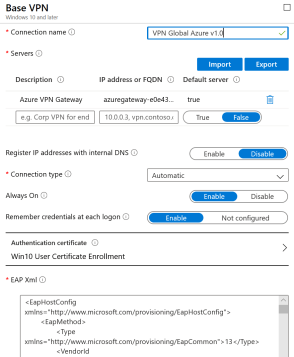
Finally, navigate to the next parameters on the Intune profile and configure what is suitable for you, like the Split tunneling and the Trusted Network Detection.
Hope you enjoyed
 Welcome to get-Ready