Microsoft Teams – tablette de dessin Wacom

Dernièrement j’ai été confronté à des questions tel que « comment être plus efficace lors de présentation ? »

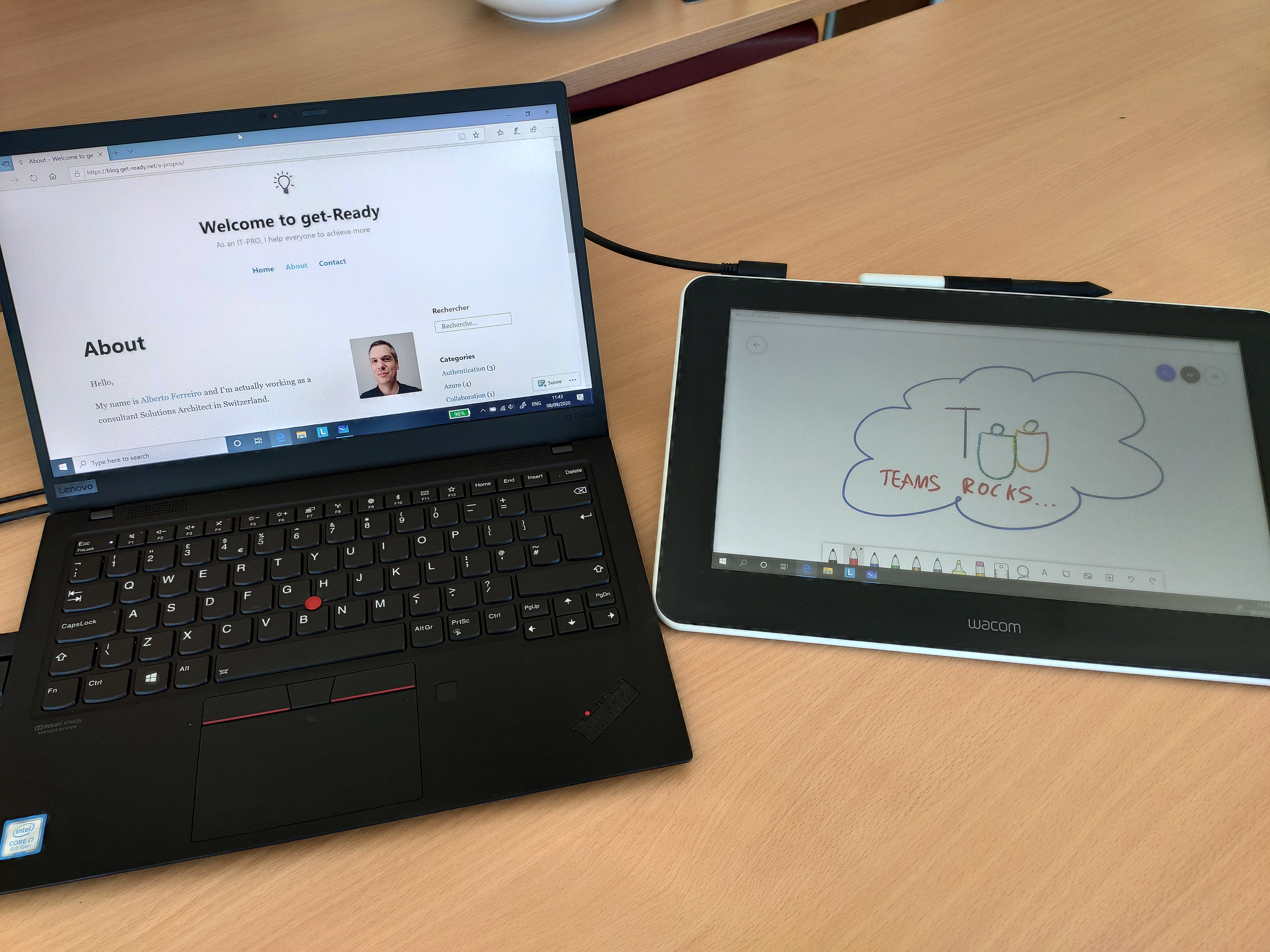
Evidement, il n’y a pas de formule magique, mais j’ai décidé de tester la nouvelle tablette de dessin « Wacom One ». Cette tablette se comporte comme un écran tactile externe et offre la précision de dessin nécessaire avec un stylet adapté.

Mon but étant d’utiliser cette tablette lors de mes formations et conférences avec Microsoft Teams, car même si j’ai un écran tactile sur mon laptop, je n’ai pas trouvé la bonne façon de pouvoir dessiner efficacement.

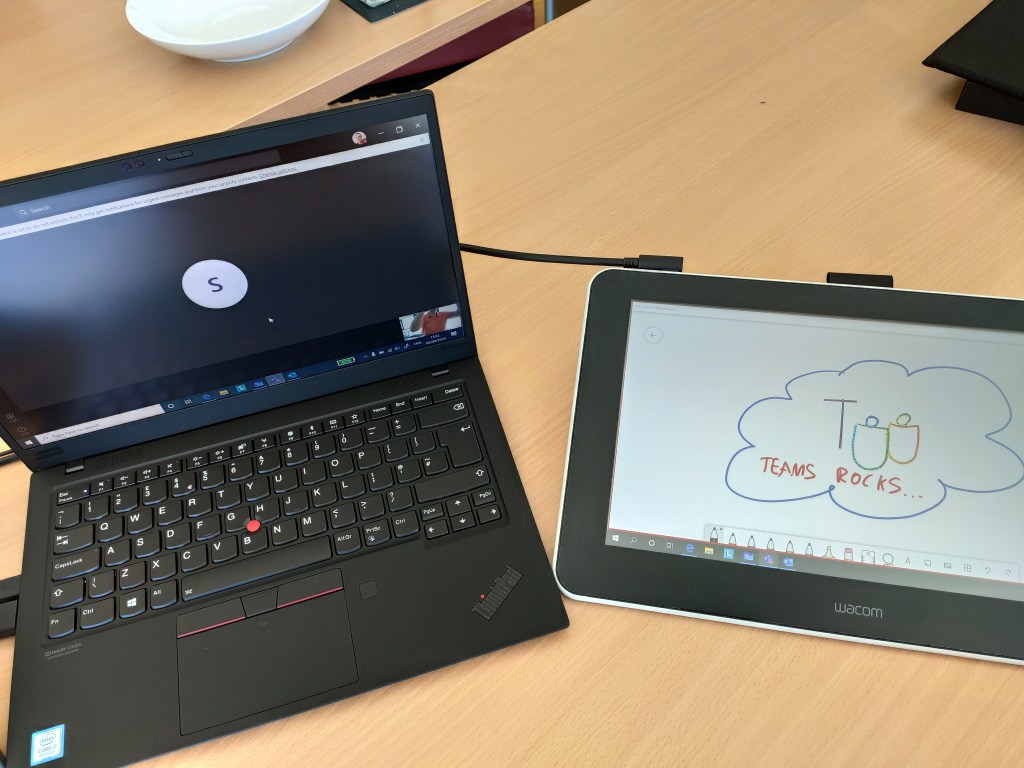
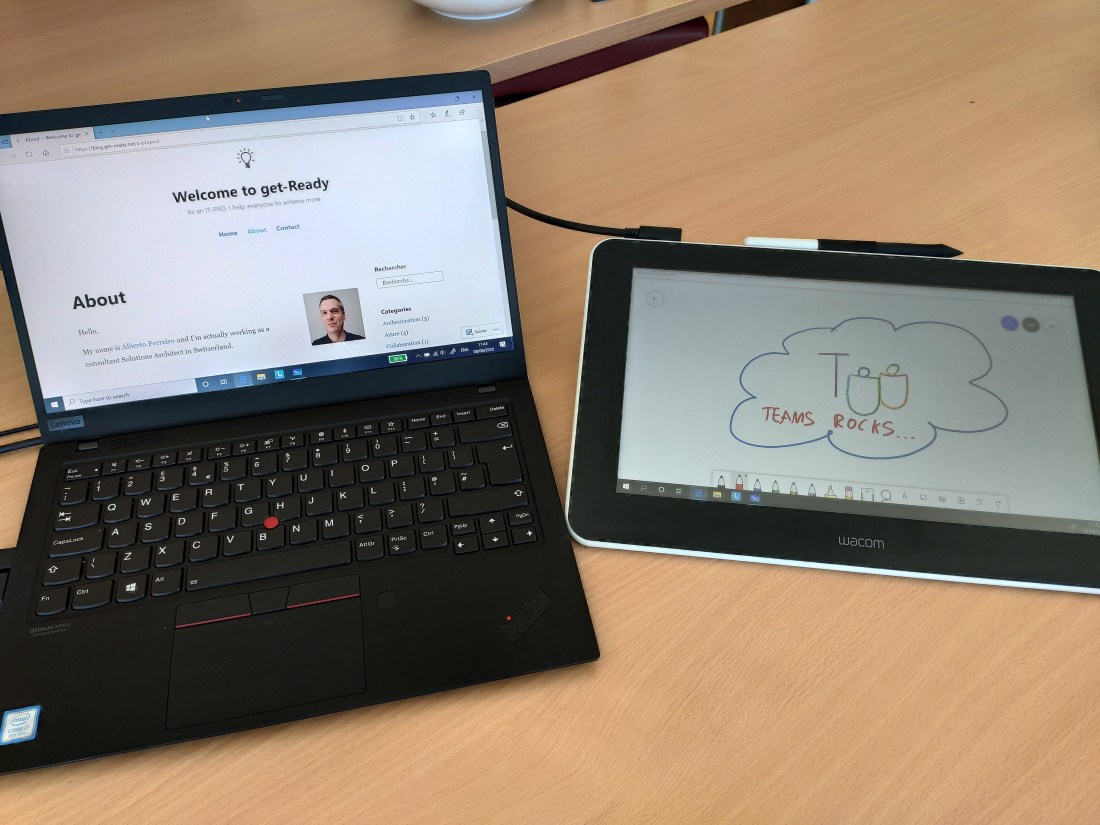
voici quelques photos de ma configuration
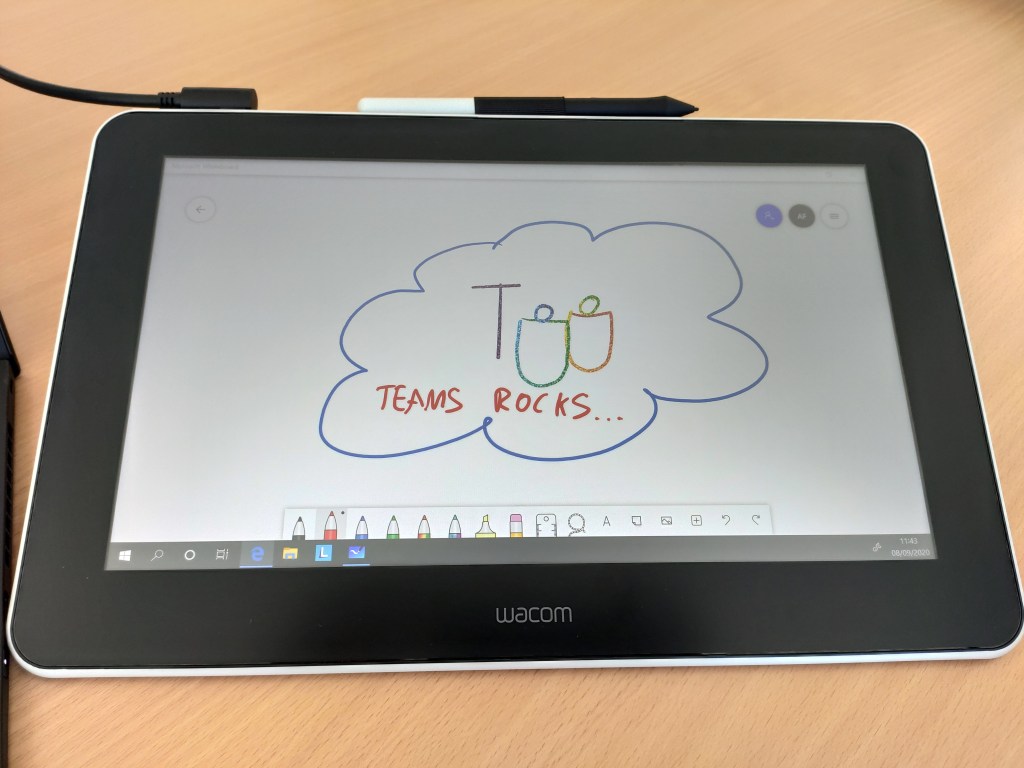
Ensuite pour le partage dans Microsoft Teams, rien de plus simple. Il vous suffit de partager l’écran de la tablette Wacom One, ou alors d’utiliser « Microsoft Whiteboard » pour illustrer vos propos.
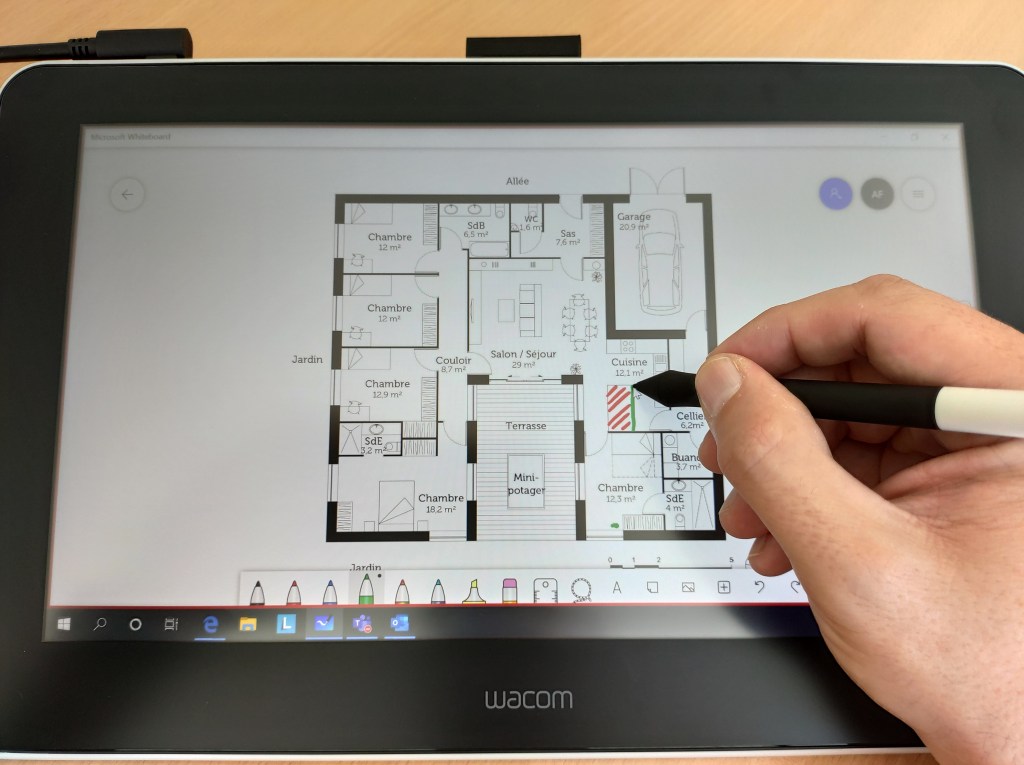
L’ensemble de vos correspondants Microsoft Teams visualisent parfaitement vos illustrations, ainsi que la présentation à l’écran.

La tablette Wacom permet de dessiner facilement avec « Microsoft Whiteboard » et « Microsoft PowerPoint » pour ne citer que ces deux. Quantité d’autres logiciels sont parfaitement compatible.
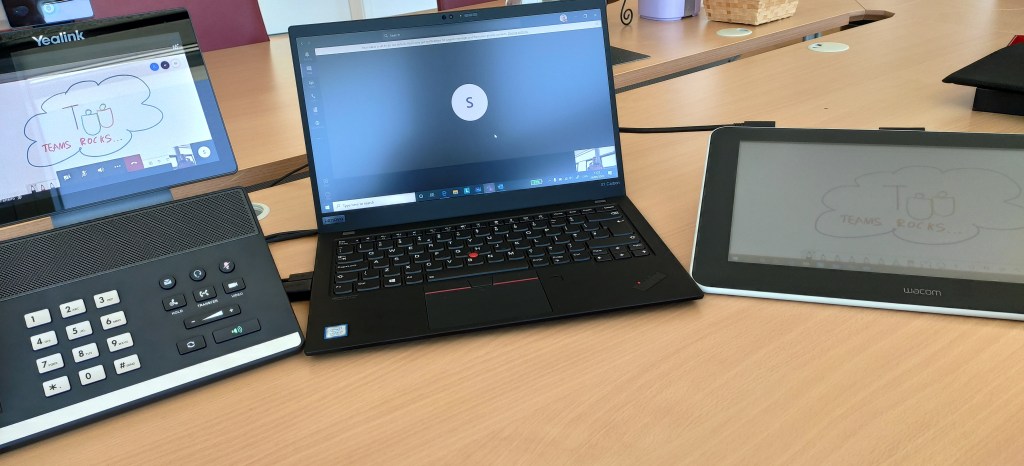
La tablette Wacom One dispose des connectiques suivantes:

  • USB pour la connexion au PC
  • USB pour l’alimentation électrique
  • HDMI pour l’affichage de l’écran

En espérant que cet article puisse vous aider dans vos conférences de tous les jours.
Microsoft Teams – Téléphone de conférence

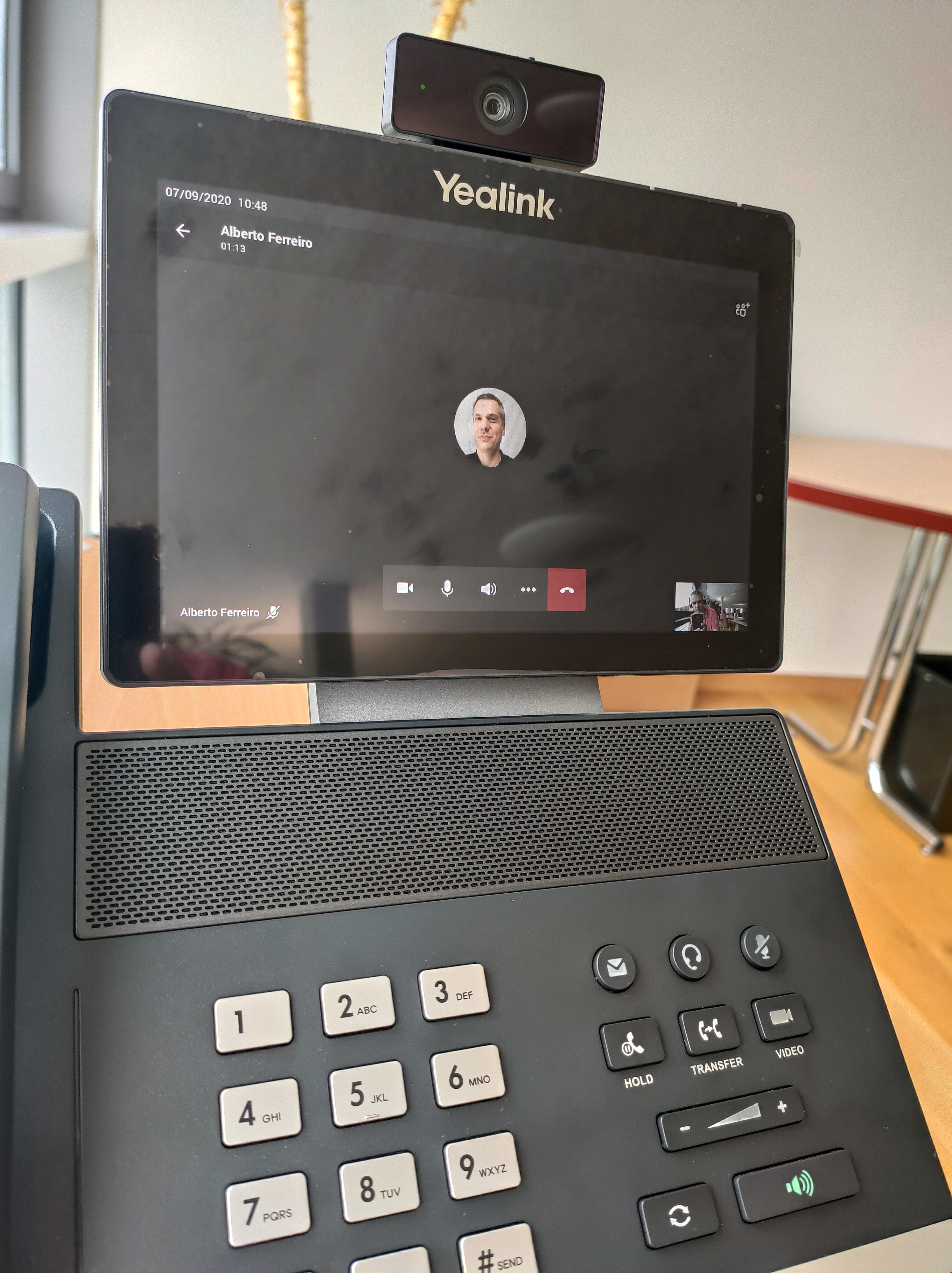
Vous trouverez dans cet article quelques indications sur comment utiliser un téléphone natif Microsoft Teams.

Ce type de téléphone vous permet d’avoir physiquement sur votre bureau ou dans une salle de conférence un périphérique qui est lié en permanence à Teams.

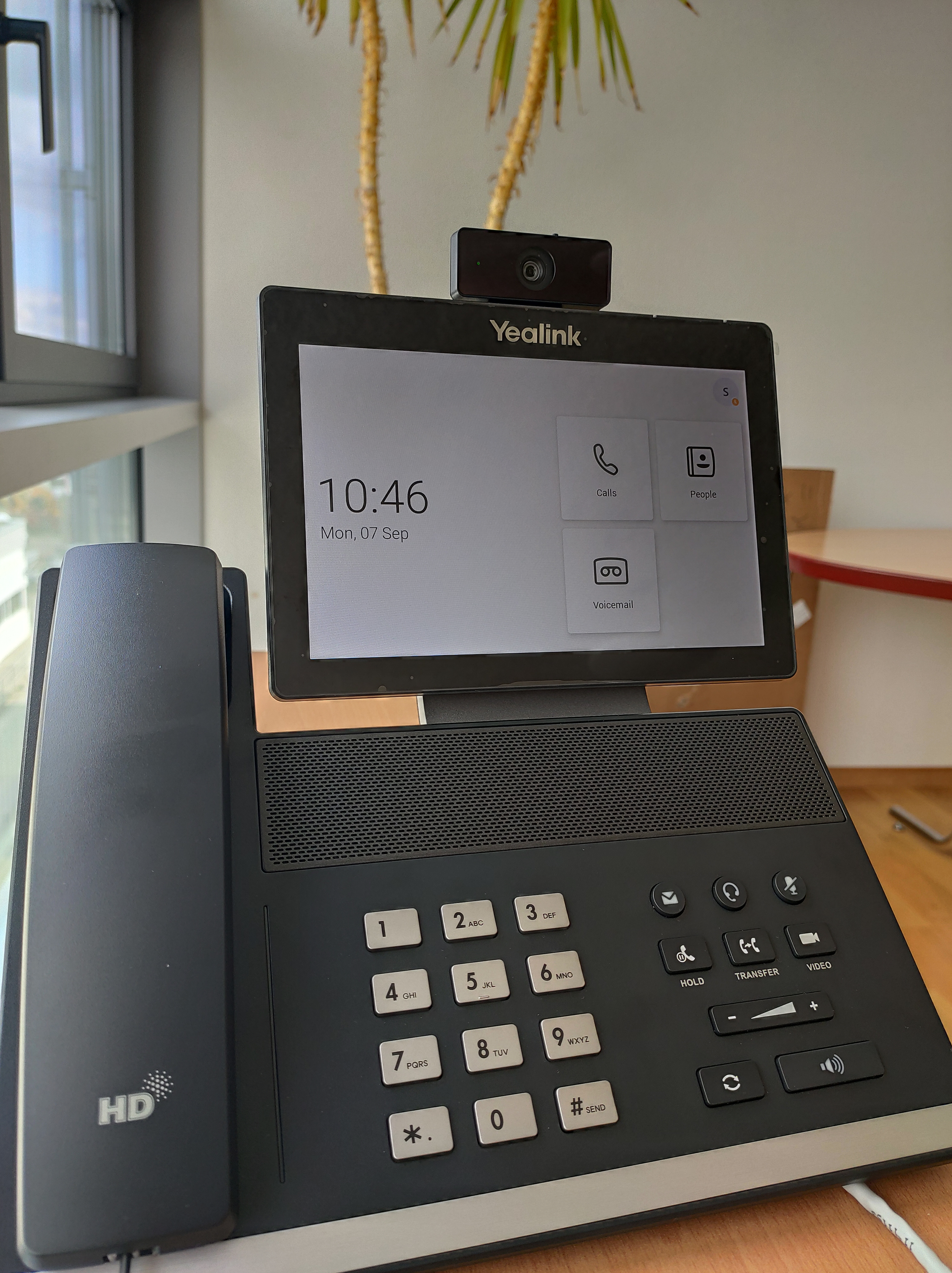
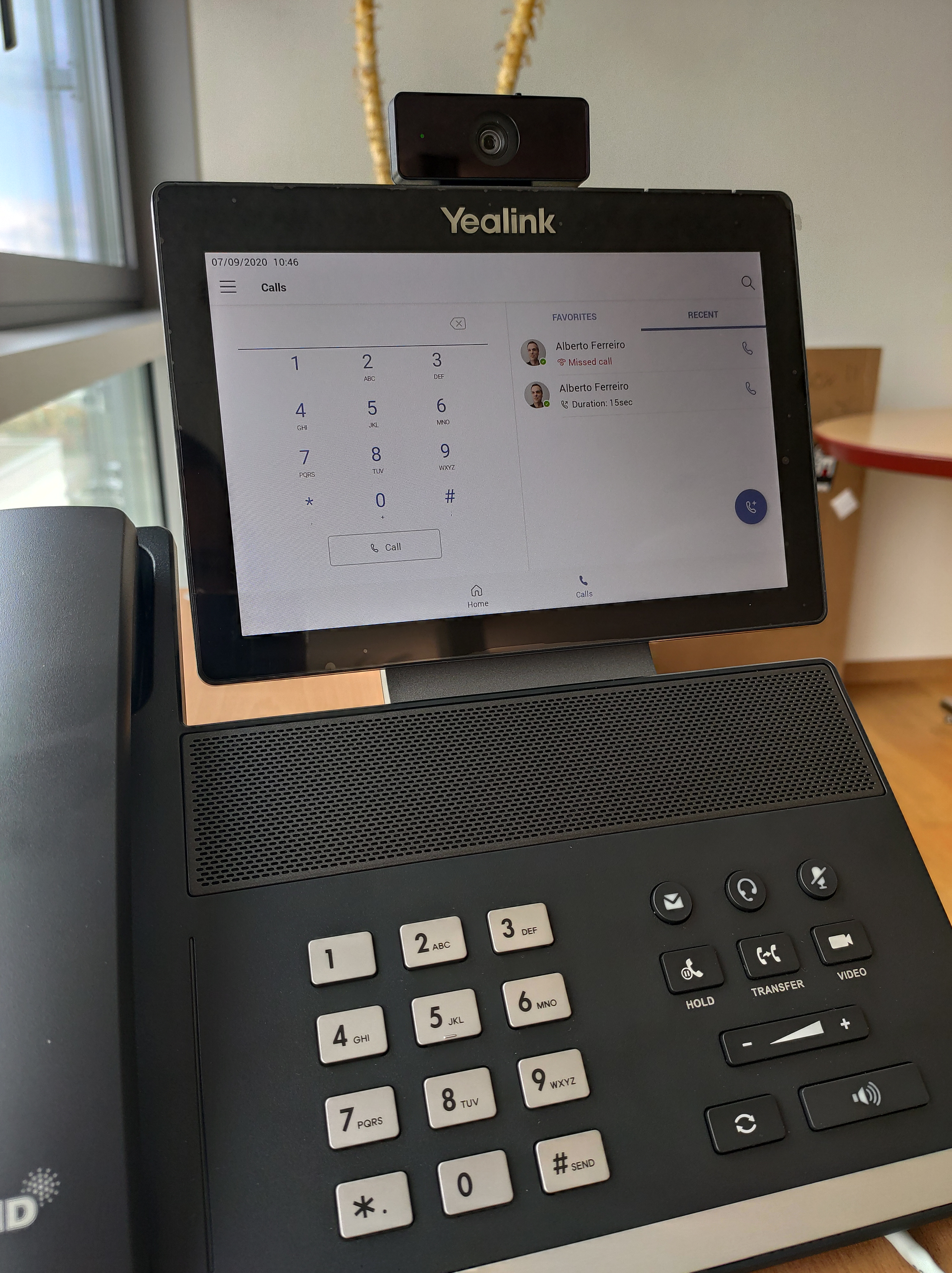
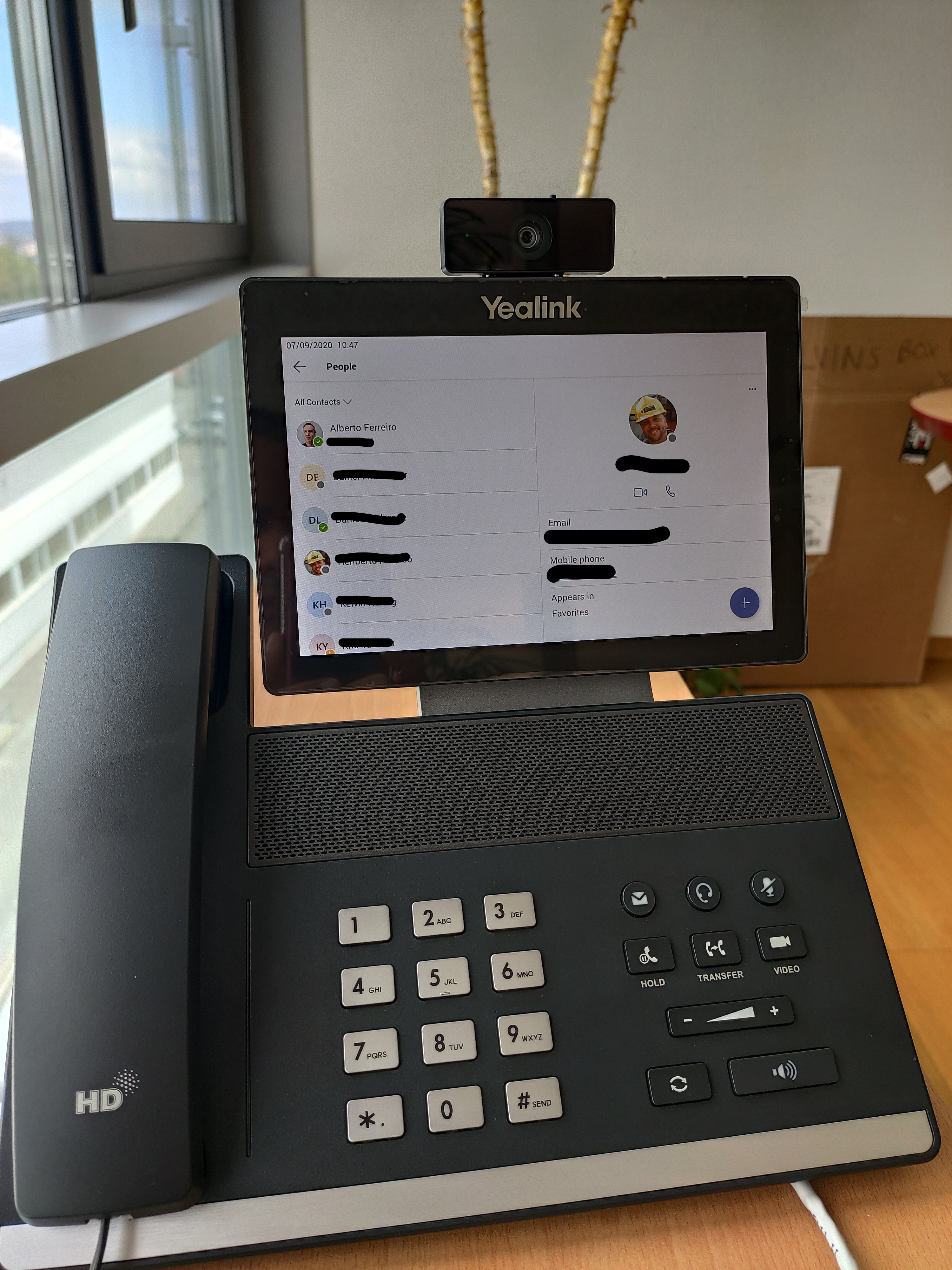
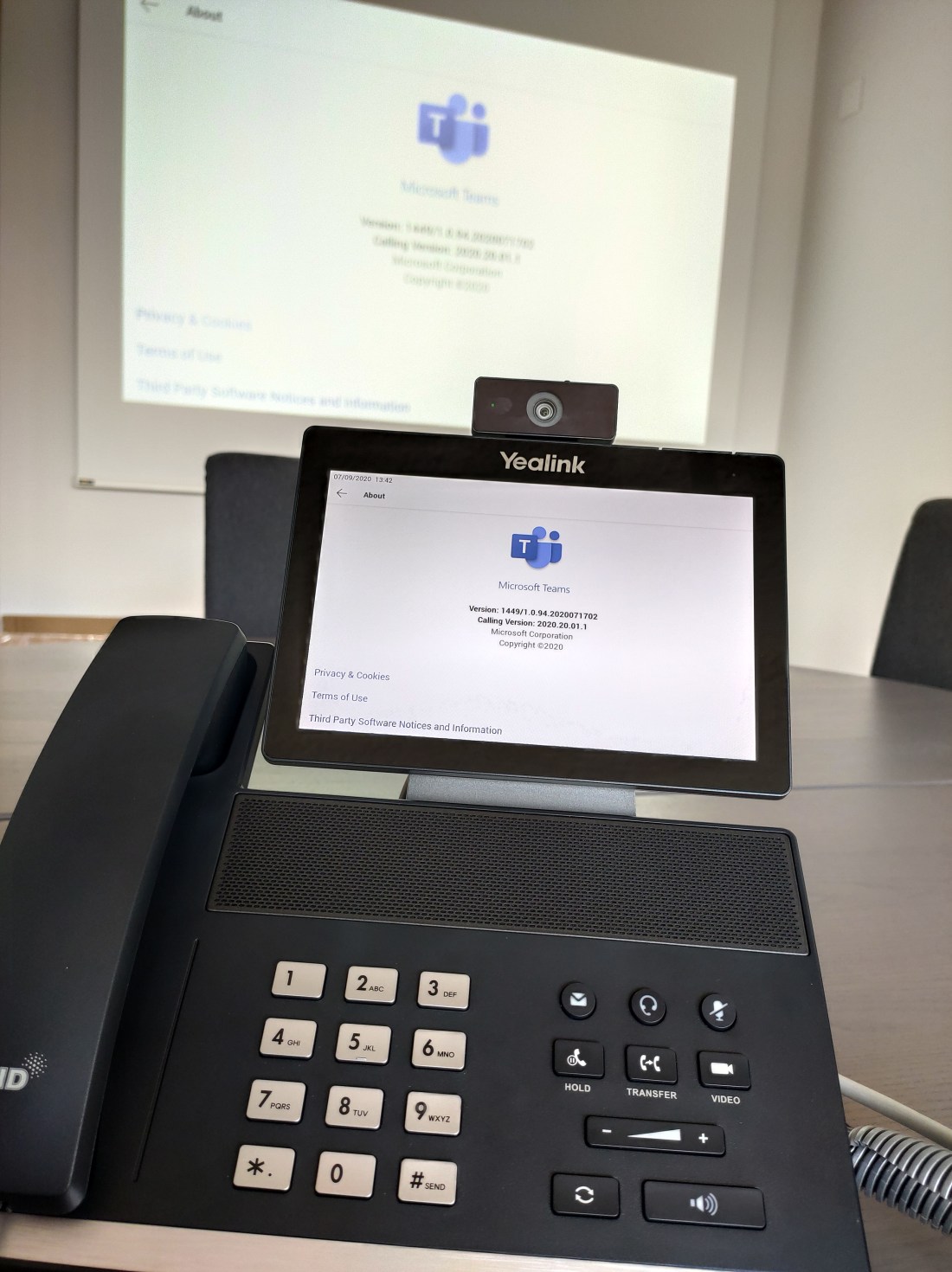
Pour cet article j’ai utilisé un téléphone de type YeaLink VP59, qui est le dernier modèle de ce fabriquant

Liste des appareils compatible et certifié par Microsoft


Le téléphone intègre les composants suivants:

  • écran tactile
  • camera
  • combiné et haut-parleur
  • connexion WIFI et Ethernet Gigabit en PoE (alimentation 230v également possible)


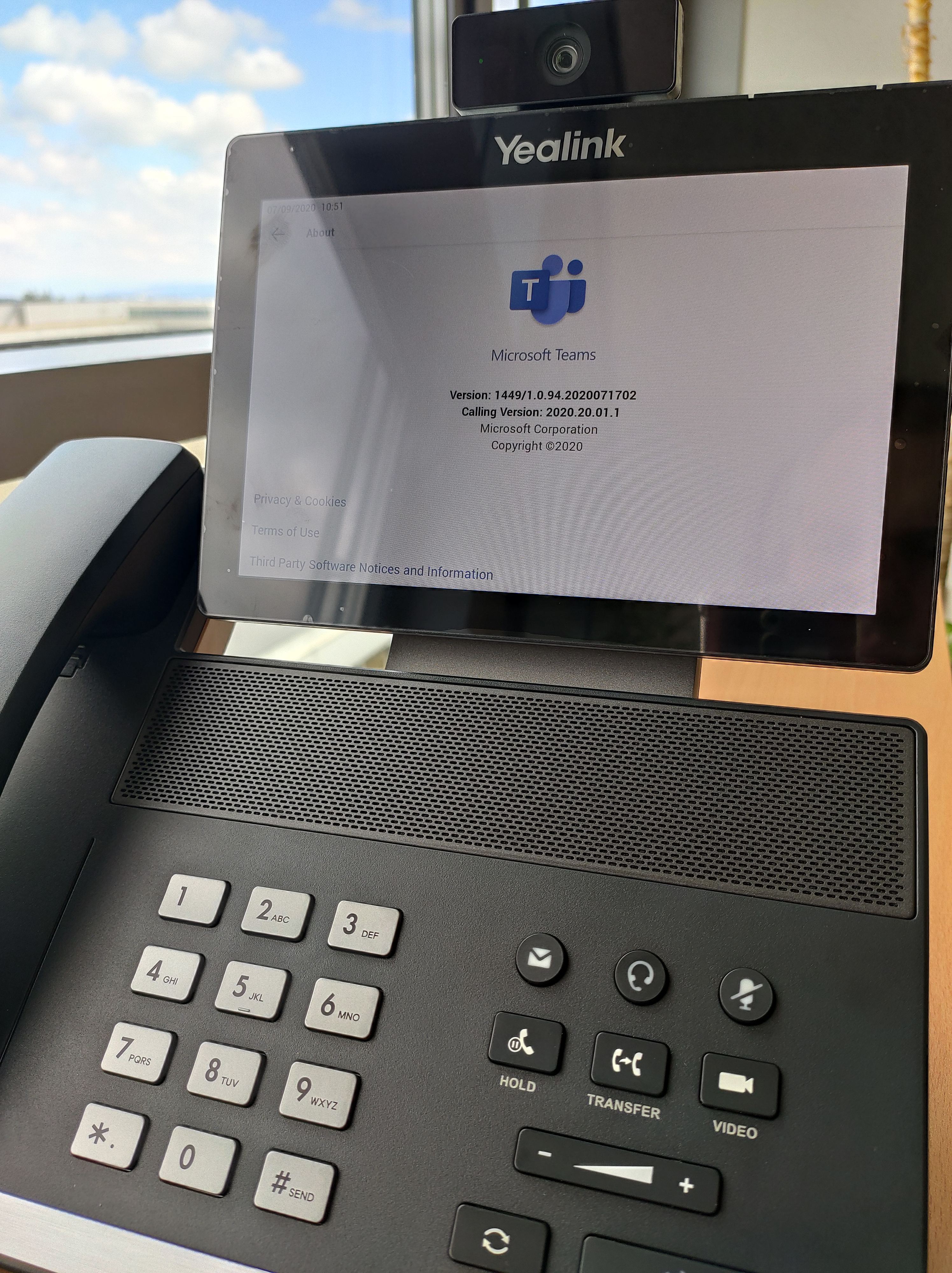
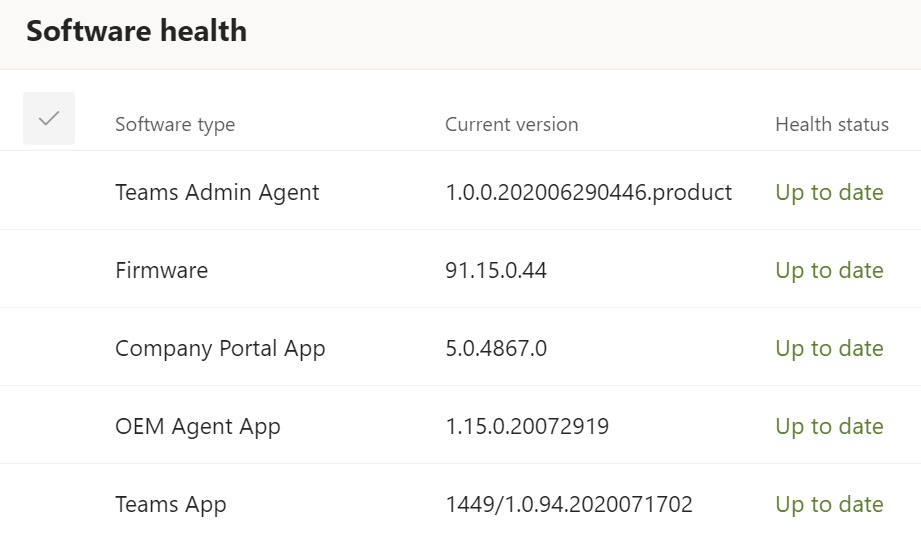
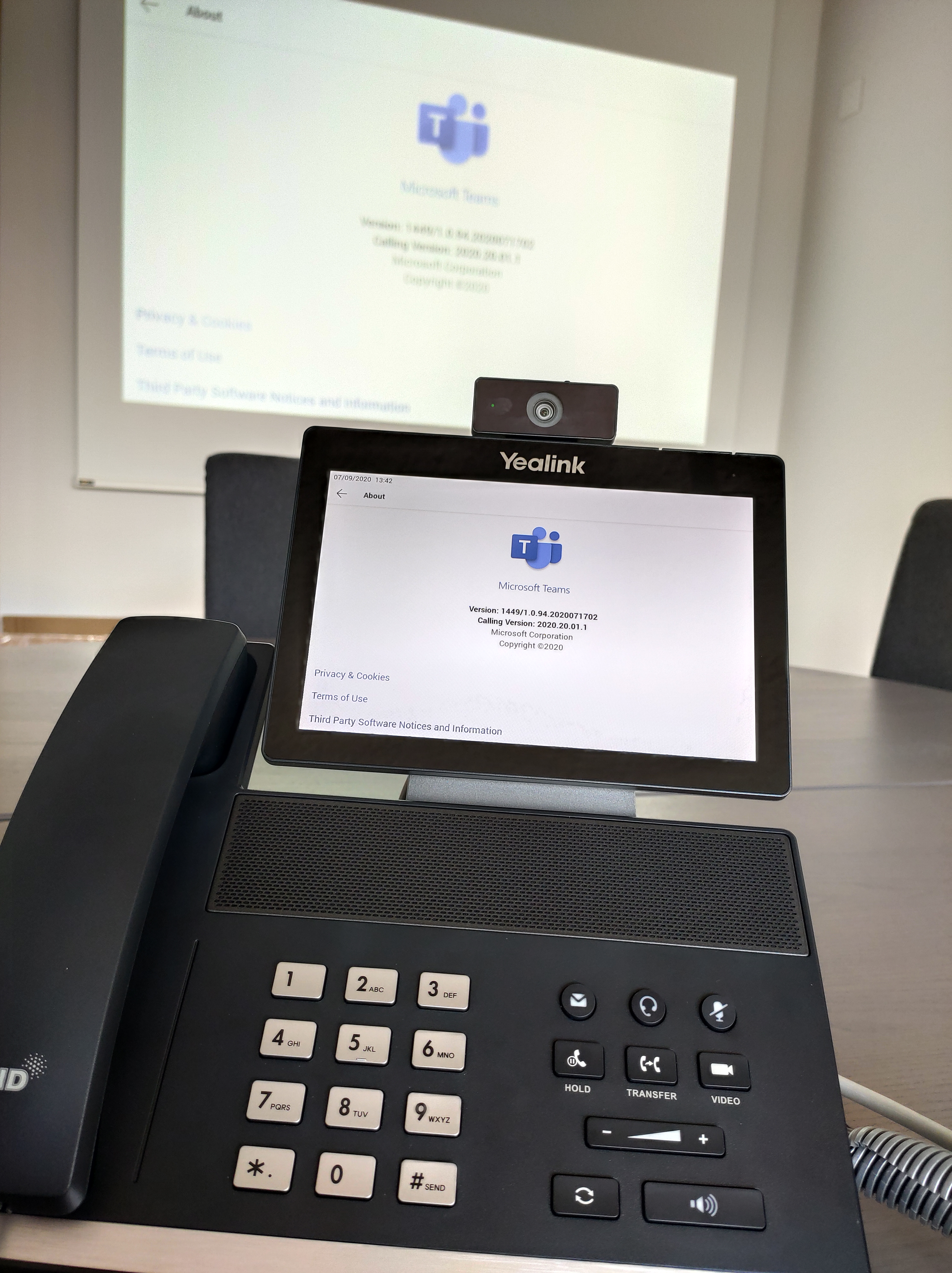
Microsoft Teams est nativement installé sur l’appareil. Les mises à jour du firmware sont disponibles chez le fabriquant directement.


Vous pouvez également piloter les mises à jour via des « policies » dans le portail « Teams ». D’autres paramètres sont également disponibles comme la gestion de l’énergie, les heures de bureau, le code déverrouillage, etc…


Lors d’appel Teams, le téléphone se comporte de la même manière que sur votre PC. Le carnet d’adresse est disponible pour des appels audio/vidéo


De plus, si vous faites une interconnexion Teams avec votre téléphonie VoIP, vous disposez de la même expérience que sur votre PC, c’est à dire la téléphonie traditionnelle intégré dans ce périphérique Teams.


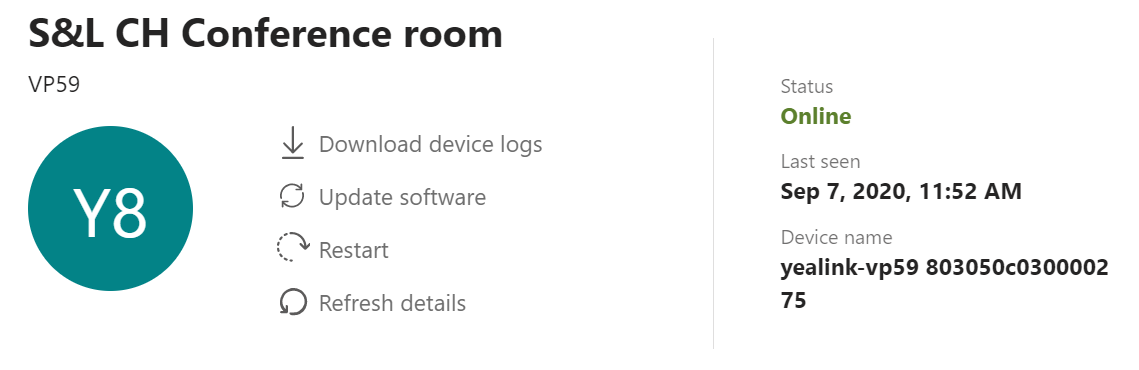
Si cet appareil est configuré dans une salle de conférence, vous pouvez sans autre le brancher sur un écran externe ou votre beamer comme démontré ci-dessous. Vous pourrez ainsi profiter pleinement de la collaboration.


Au niveau des licences Microsoft Teams, vous pouvez assigner une licence au même titre que pour un utilisateur (Business, E1, E3 ou E5, etc…), ou alors opter pour une licence de type « Microsoft Teams Rooms Standard »


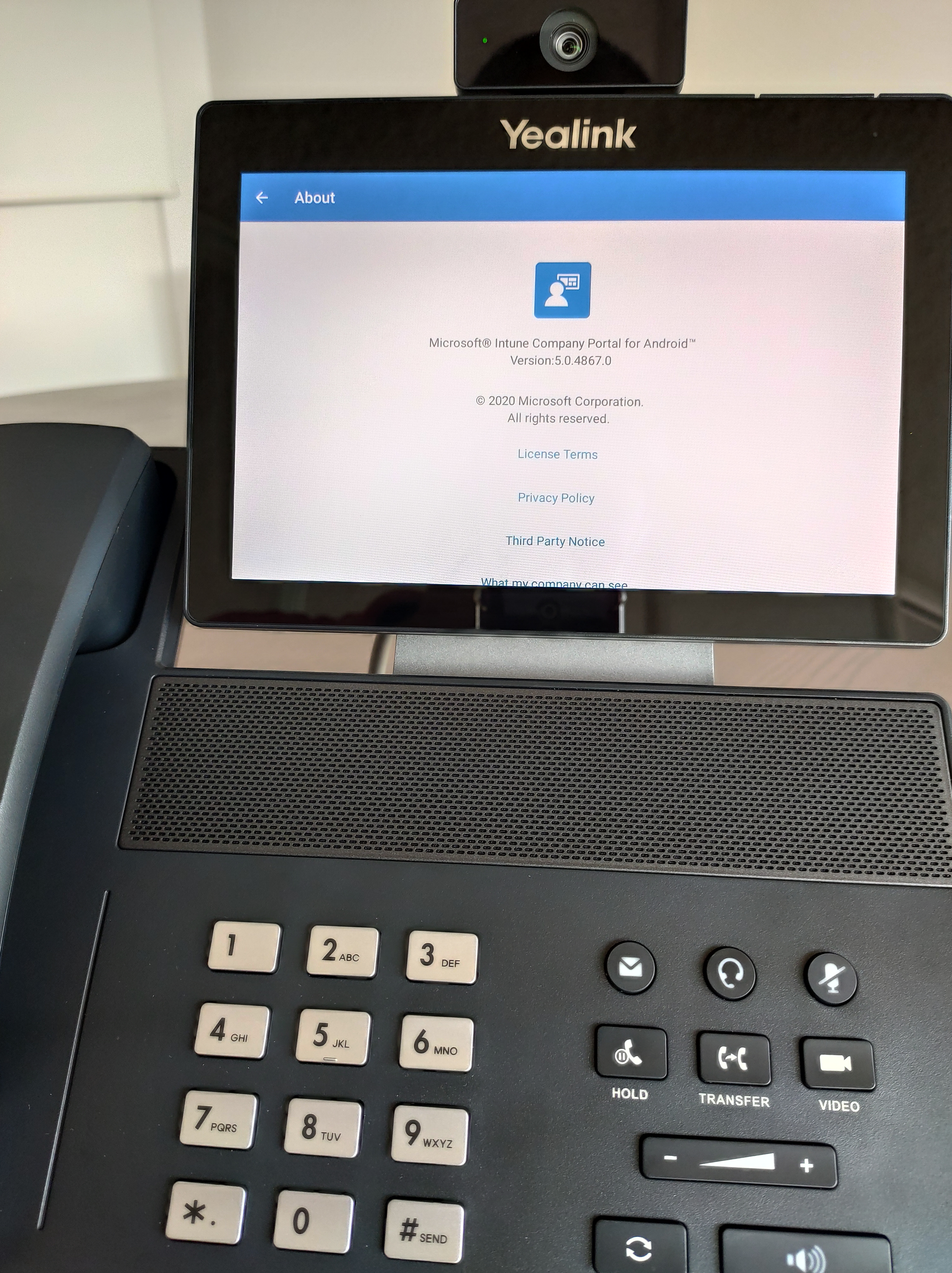
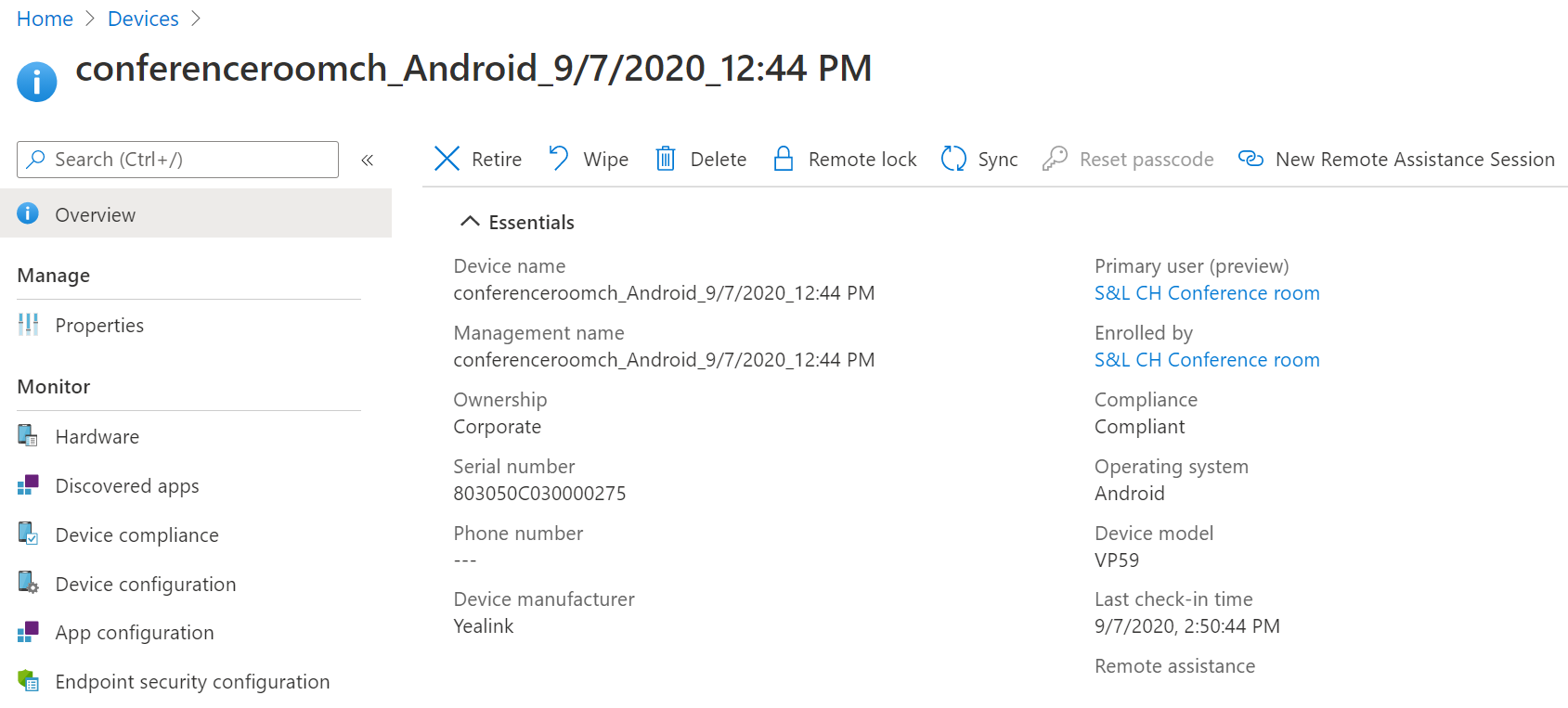
Pour la gestion du téléphone, vous pouvez le faire au même titre qu’un périphérique Android avec Microsoft Intune. Vous pouvez déployer des paramètres additionnel pour une gestion professionnelle et en volume


J’espère que cet article vous aura éclairé sur les périphériques Teams compatibles.

Outlook automated Out Of Office

Hi,

Are you interrested with an Outlook Automated Out Of Office ?

If yes, you are in the correct place. In my life I have to deal with some family duties and to consiliate with my work as a Cloud Architect, I’m taking some days off on a regular basis. My problem with that, I always forget to set the Out Of Office in my Outlook !

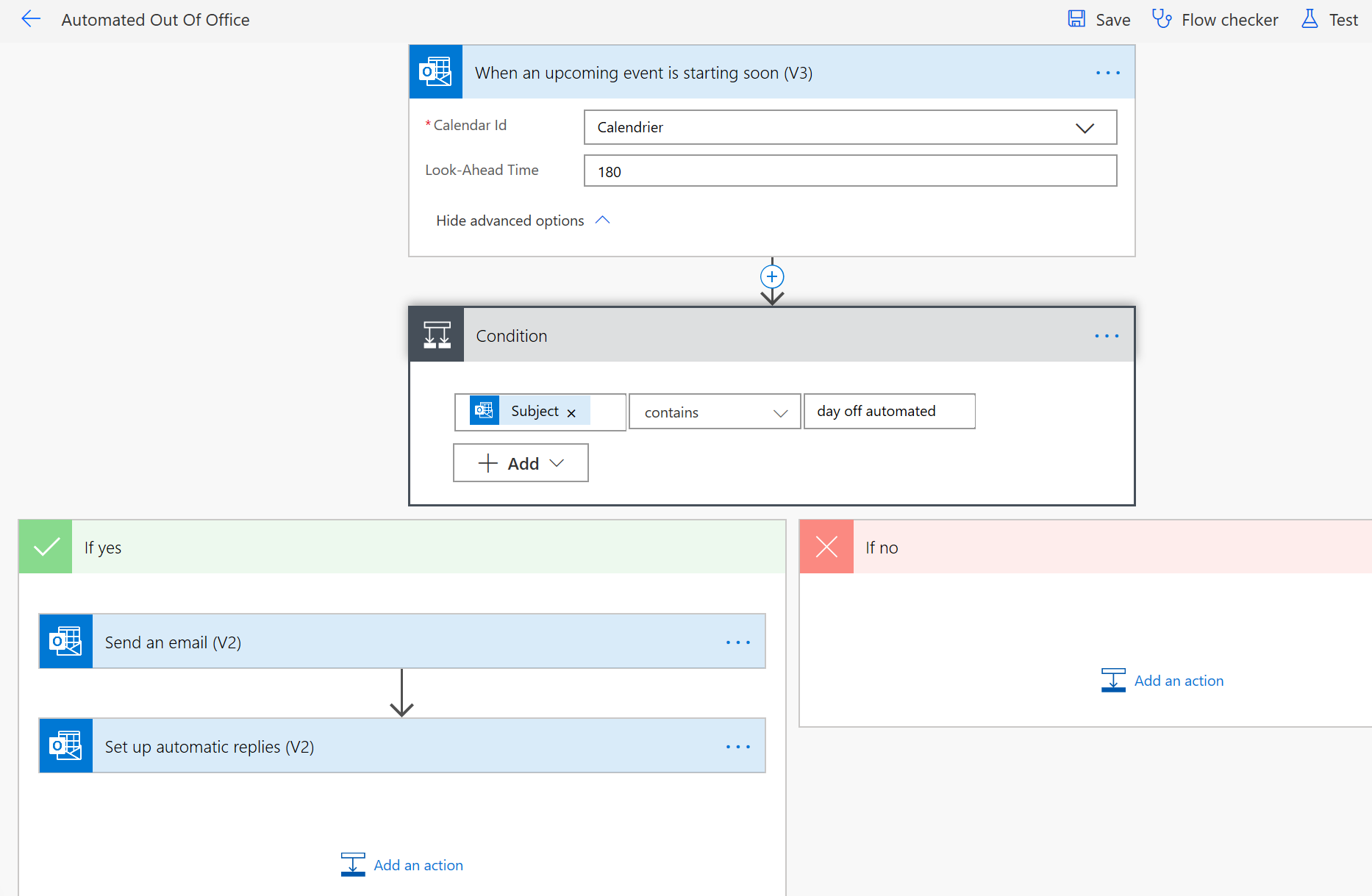
To resolve that, I used « Microsoft Office 365 – Power Automate » to create a flow with the following logic.

1- If the flow detect a meeting in my calendar called « day off automated »
-yes : set the Out Of Office with Internal and External message for the duration of the blocker
-no : don’t do anything

powerautomate1


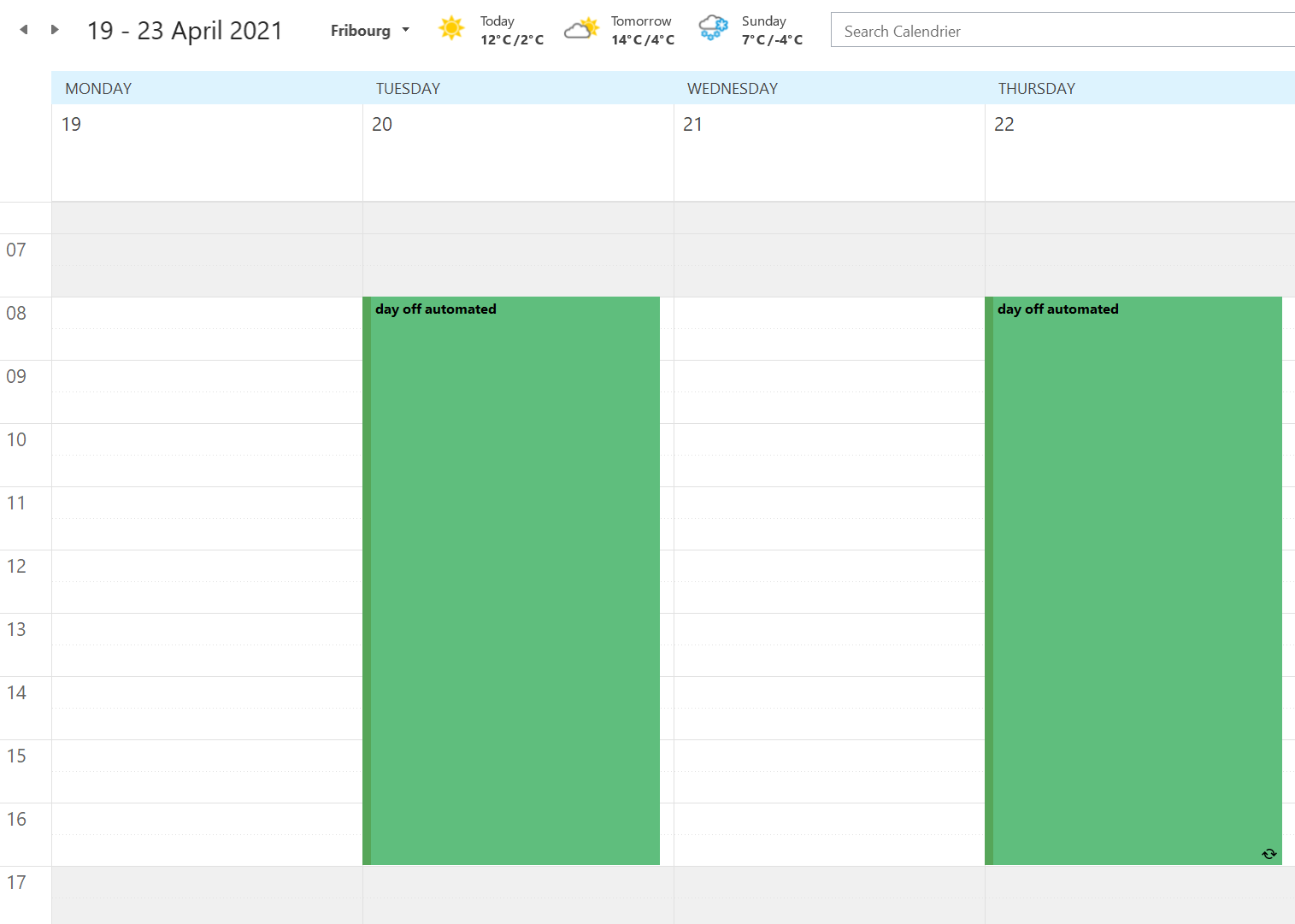
If I enter a blocker in my Outlook like this :

powerautomate2

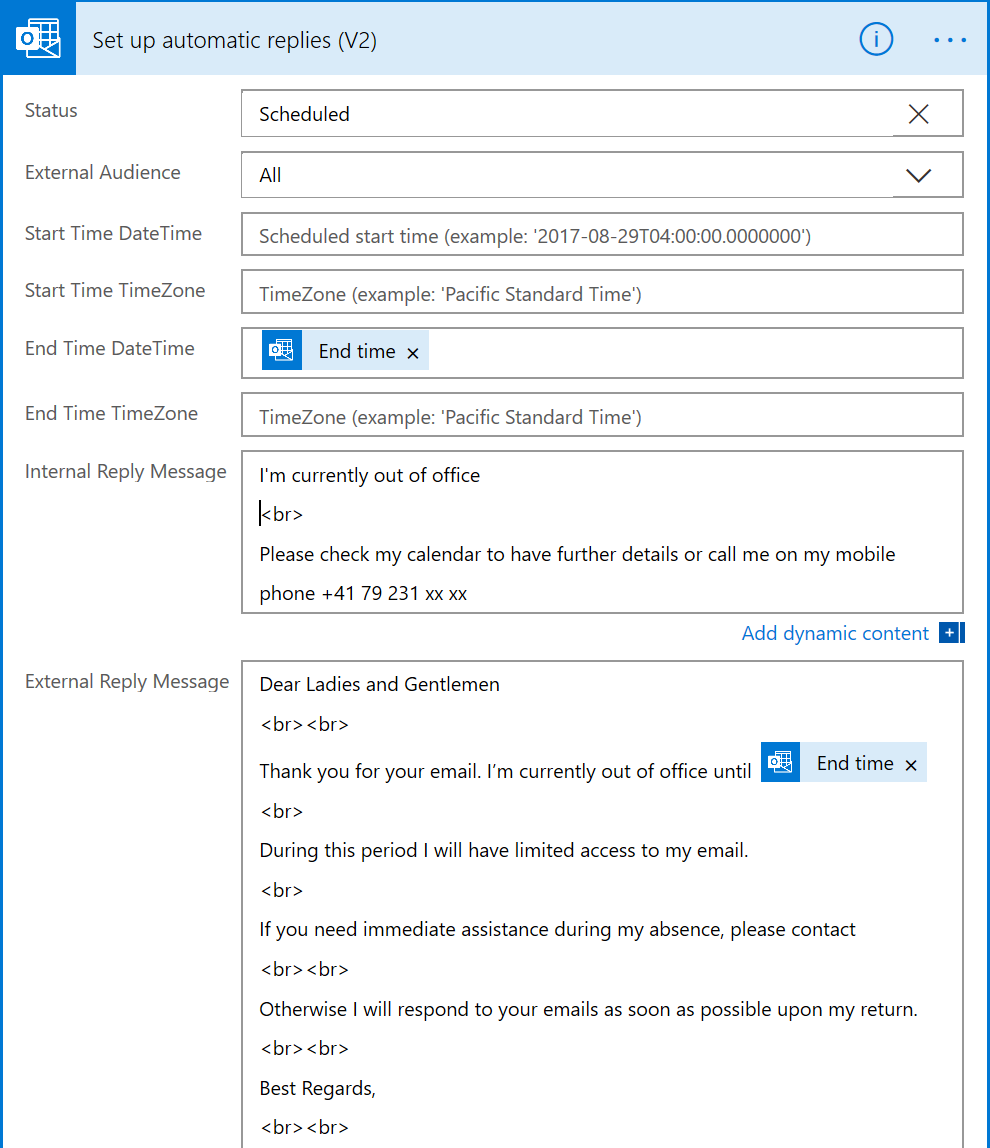
My Outlook Out Of Office will be set like that :

powerautomate3


I hope this will helpful for you. Enjoy !

Intune to configure one VPN connection to reach your Azure and on-premise

This article describes you how to configure an Azure VPN Intune profile. This profile will contain the configuration about the Azure VPN Point 2 Site.

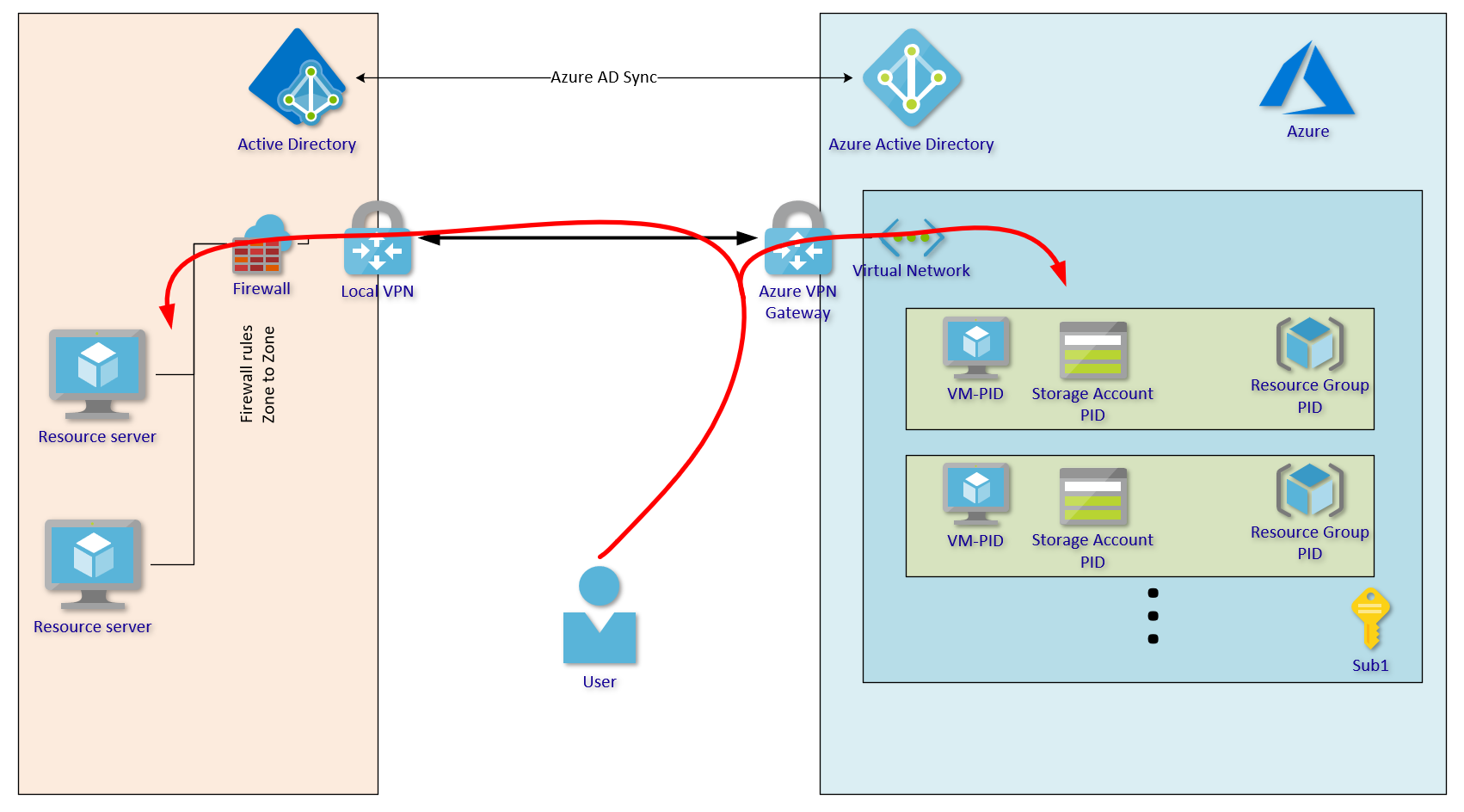
The scenario is the following. You have established a VPN between your on-premise and Azure (with BGP routing), and now you want with your laptop access the resources in both places with only one VPN connection. This VPN connection will start automatically without any prompt when you are outside your company.


STEP 1 – Configure the Azure VPN P2S

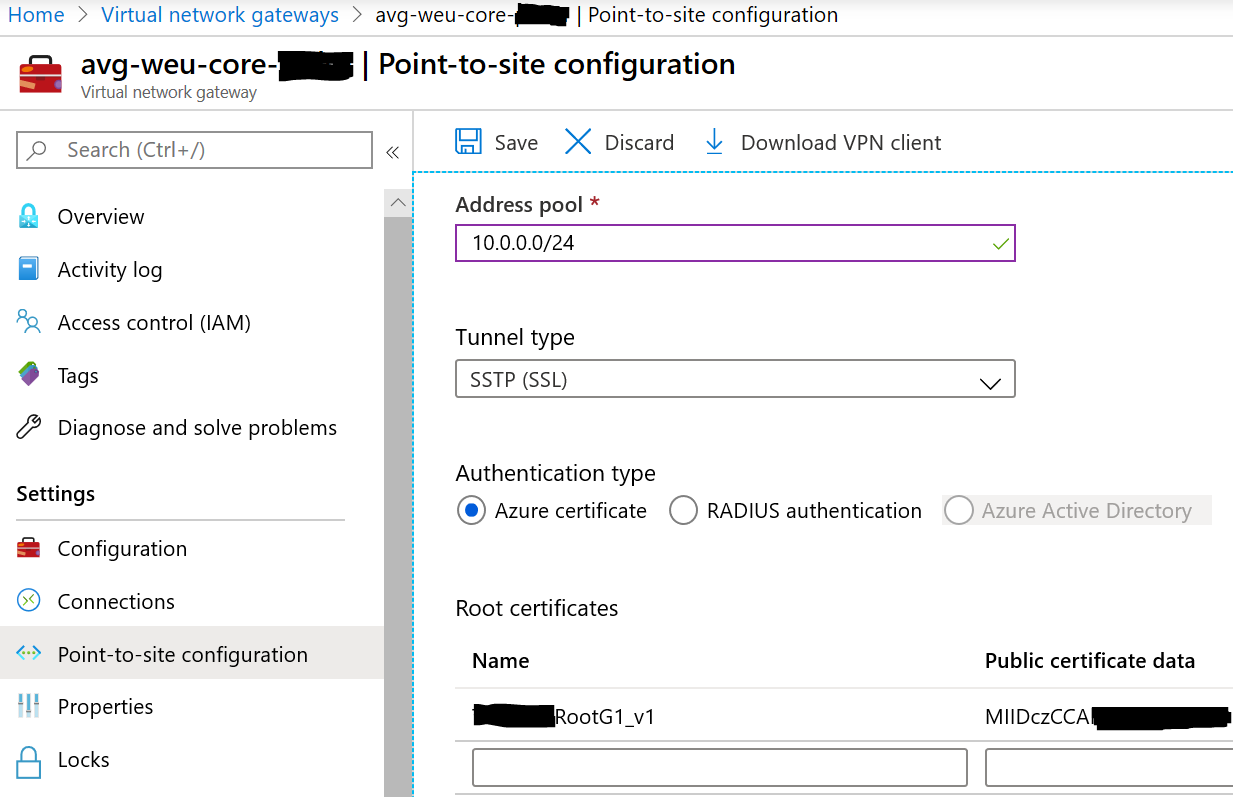
Go to your Azure Virtual Network Gateway, and select the tab « Point-to-site configuration »

Enter an IP range (not in conflict with other routed networks), this range will be used by your remote laptops

Select « Azure certificate » to work without any prompt. You need enter the name of your ROOT Certificate authority, and the « public certificate data » coded in base64.

When the configuration is finished, download the VPN client, and extract the files inside the ZIP archive.


STEP 2 – Get the informations

From the data you get, please open the GENERIC folder and open the VPNSETTINGS.XML

Look for the value of <VpnServer>, looks like « azuregateway-xxxxxx.vpn.azure.com« . This value is the Azure VPN Server name

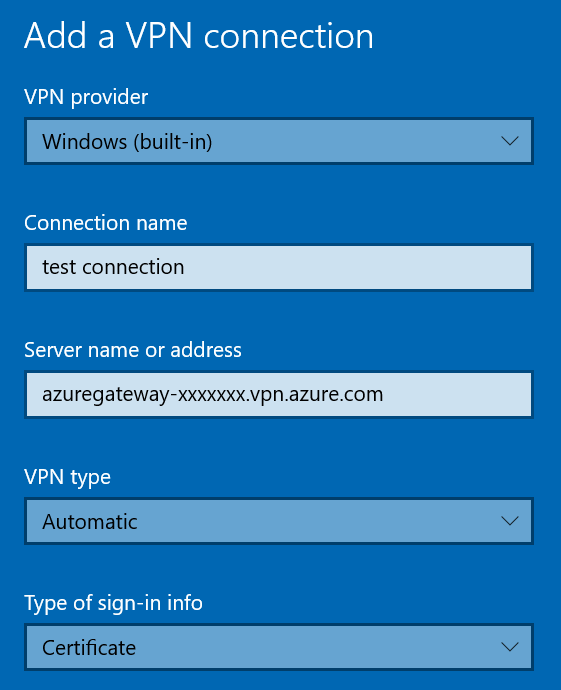
Additionnaly, we need to identify the SSL Server certificate thumbprint. The only way that is found, if to create from scratch on your Windows 10 computer a new VPN connection, by entering the corresponding informations.

When open a PowerShell console and type the following command

$vpn = Get-VpnConnection -Name “test connection”
$vpn.EapConfigXmlStream.InnerXml

then copy the output, and consider it as the XML configuration.


STEP 3 – configure your Intune profile

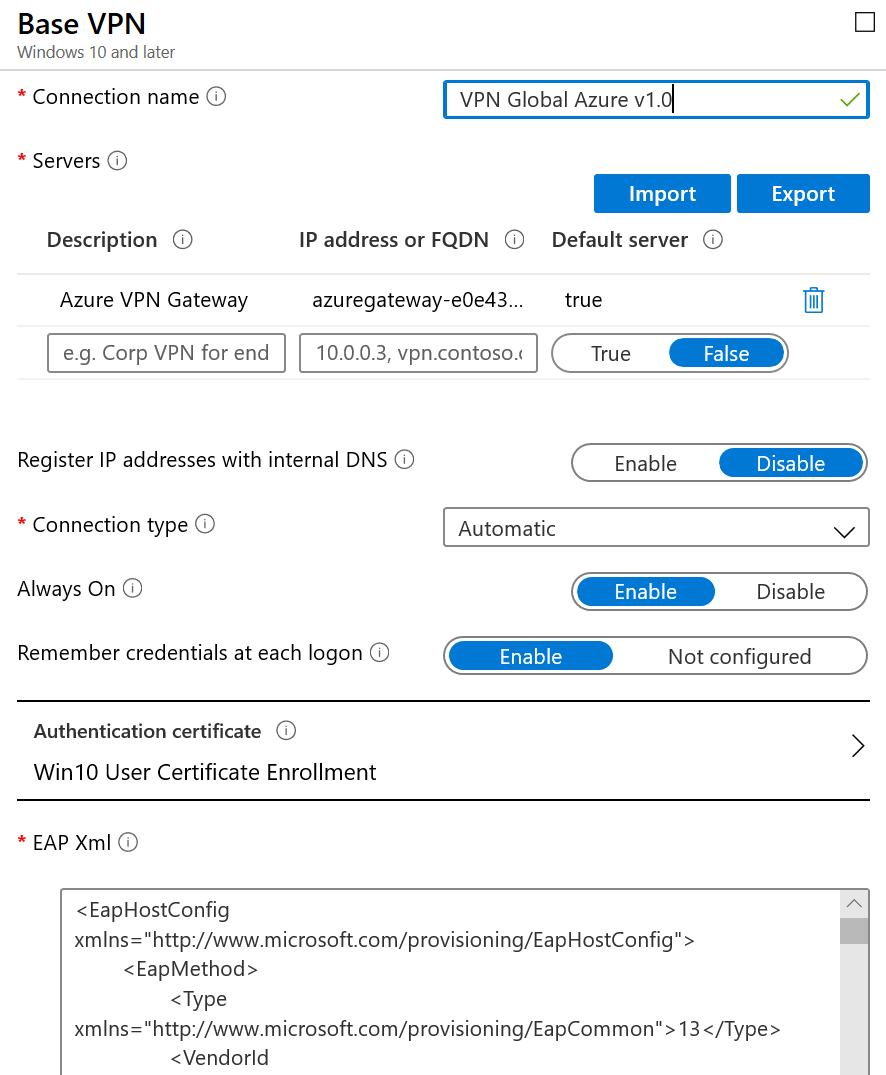
Create a new Intune configuration and select the VPN profile.

Enter the Azure VPN Server name on the « Servers » list. Set the description you want.

On the parameter « EAP XML », you can paste the previous XML configuration


Finally, navigate to the next parameters on the Intune profile and configure what is suitable for you, like the Split tunneling and the Trusted Network Detection.

Hope you enjoyed


Microsoft Intune – how to configure Sonicwall NetExtender VPN client

This article will explain you how to configure with Microsoft Intune the Dell Sonicwall NetExtender VPN client.

Step 1

Use this small piece of PowerShell script and customize it with your own parameters like the Sonicwall VPN Server

#Prerequisites : the Dell Sonicwall NetExtender should already be installed on the computer before to run the script
cd « C:\Program Files (x86)\SonicWall\SSL-VPN\NetExtender »
$VPNServer = « vpn.server.com »
$VPNDomainName = « VPN »
$VPNPassword = «  » #if you want to provision the password
## uncomment the next line if you want the VPN username equal to the computer name
#$account = $env:computername
## uncomment the next line if you want the VPN username equal to the UPN of the logged user
#$account = whoami /upn
.\NECLI.exe addprofile -s $VPNServer -u $account -p $VPNPassword -d $VPNDomainName


Step 2

Define in Intune the script deployment and assign the configuration to the « user »

Go to Intune, Device Configuration and finally to PowerShell Scripts

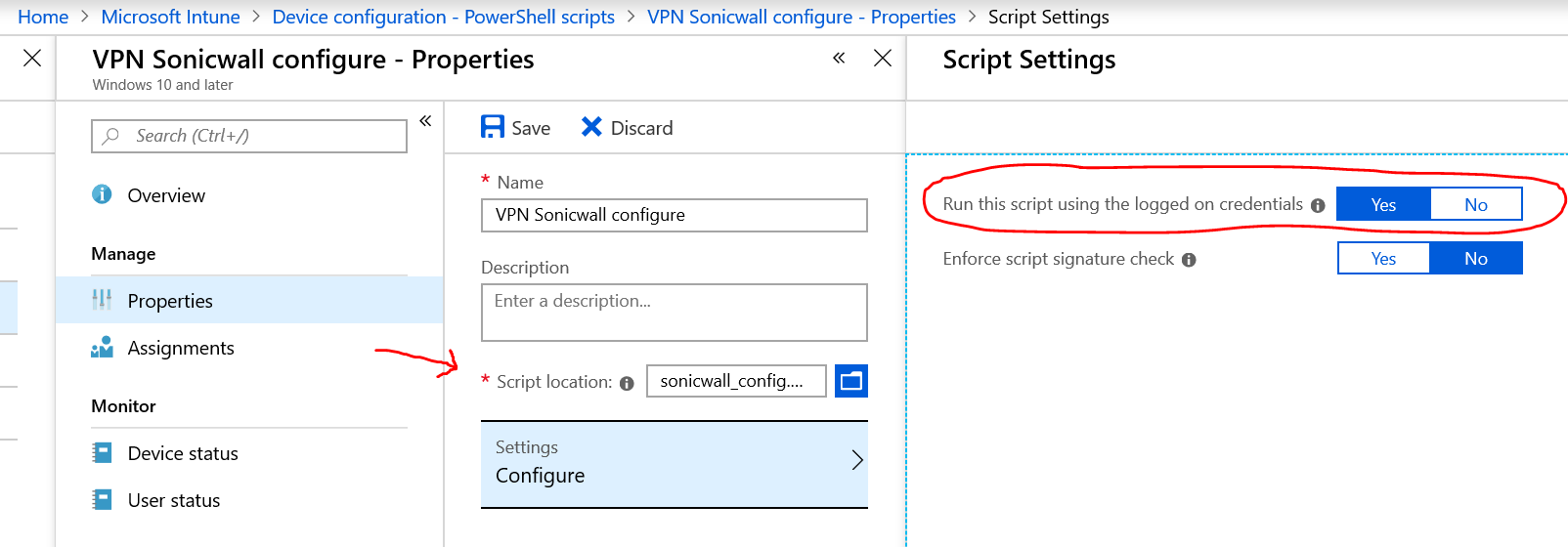
Enter the name for this script, specify the script location and don’t forget to set to YES « Run this script using the logged on credentials »

sonicwall


Step 3

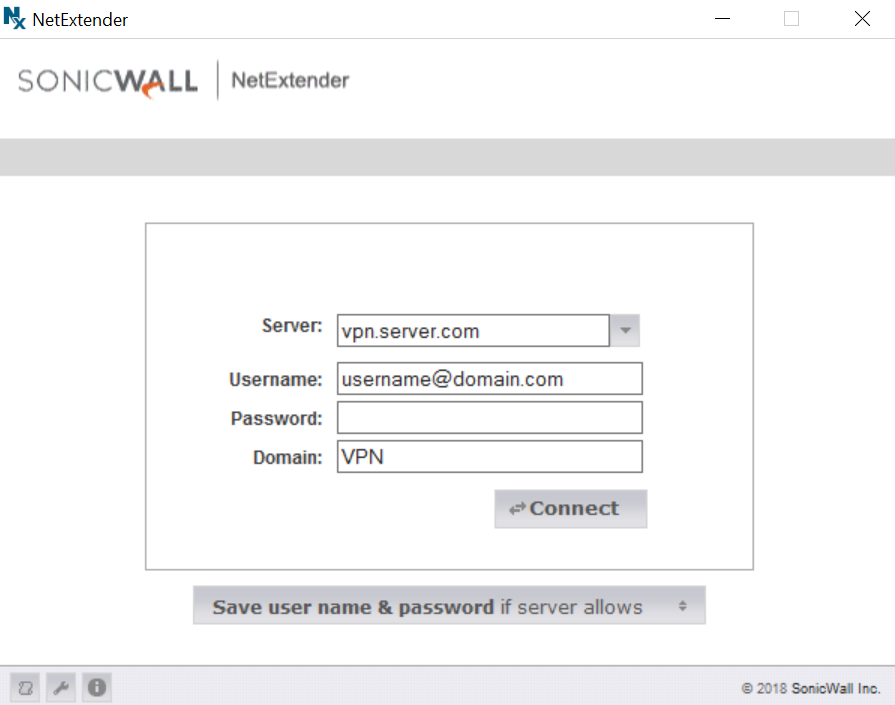
After a successfully Intune deployment, you can start using the NetExtender, you just need to fill the password and click Connect.

Enjoy !

sonicwall1