
Hi,
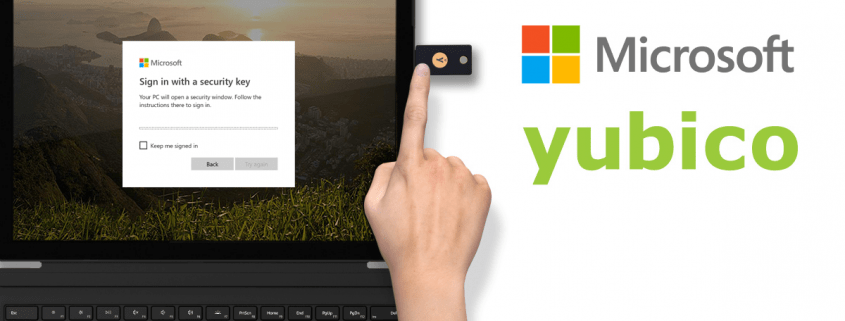
Here you will find here some information on how to setup your Microsoft account to login without any password. For the purpose I will use a YubiKey 5 which is USB and NFC.

You also need to have a computer with Windows 10 at least version 1809
To setup your Microsoft account, please proceed as follow
STEP 1
Login to your Microsoft account with your password https://account.microsoft.com/account

STEP 2
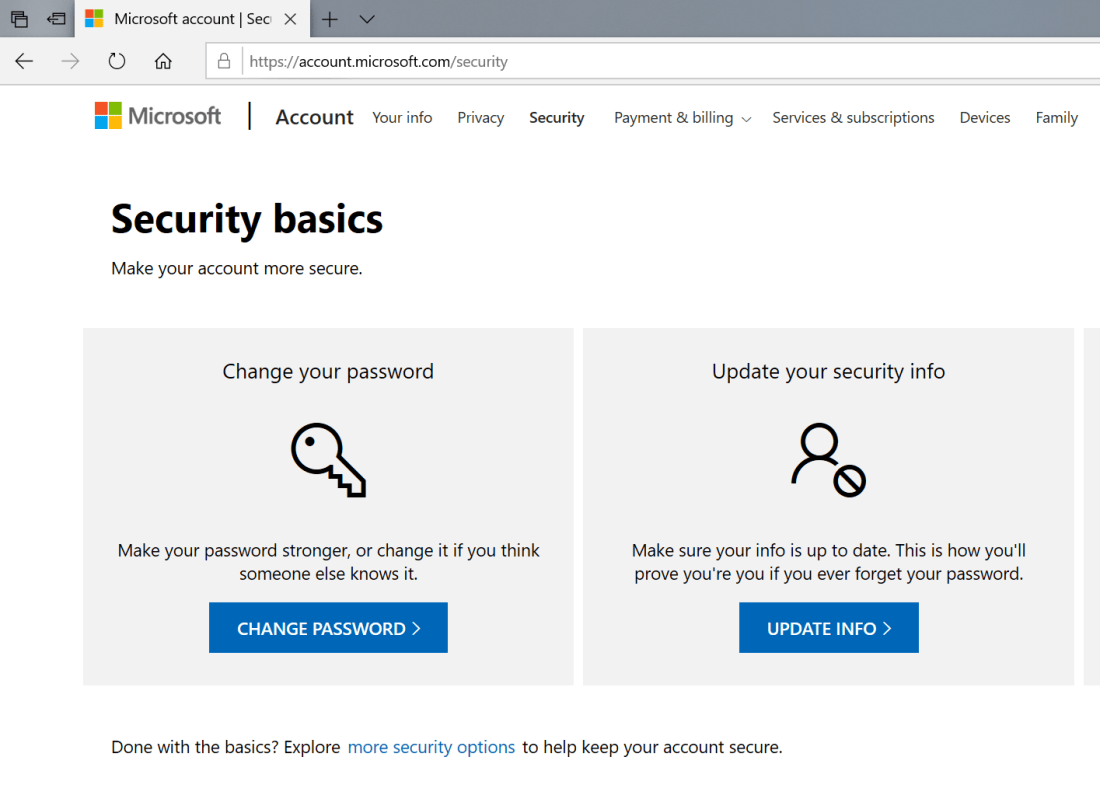
Go to the « Security » on the top of the page, and select « more security options » on the bottom
STEP 3
then go to the « Set up a security key »
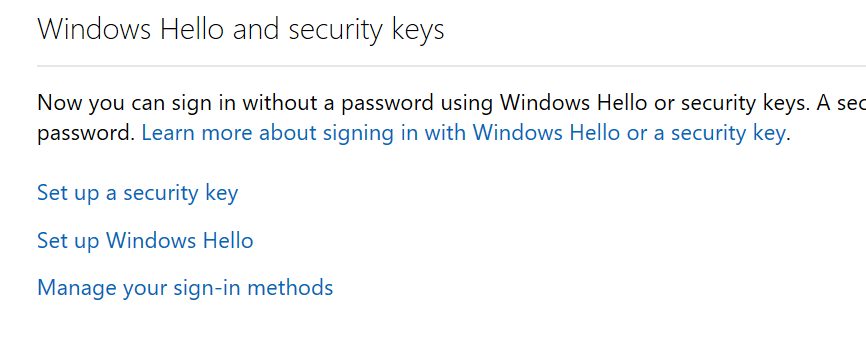
The system will ask if you are using an USB key or a NFC device. In my case I’m using an « USB device » and click « next »

Then be sure that you USB device is inserted on your computer and follow the instructions. In my case I just need to « tap » the device with my finger.

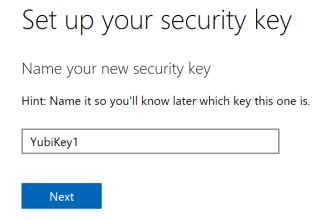
and finally enter a friendly name to easily recognize your device afterwards
STEP 4
You can now test if the configuration works as expected.
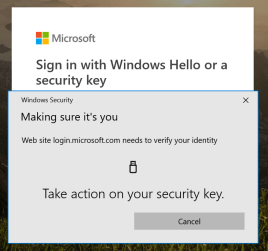
Close your browser and go to the Microsoft account login page. Don’t enter any username, just click on « Sign in with Windows Hello or a security key« .
And follow the instructions on the screen, on my case i just need to « tap » the USB device with my finger.

Well done, you are now ready to use your Microsoft account without any password !
Your Microsoft password is still valid, and I recommend you to change it to a very complex password and keep it in a secure place. Use it only when you don’t have your USB device.
 Welcome to get-Ready